
Teams and accounts
Projects, alert channels and rules, and API and MCP tokens belong to a team. People see the teams they are members of; system administrators see every team, see Setup and system administration.
Roles
| Role | Can |
|---|---|
| Owner | Everything an admin can, and transfer ownership. One per team. |
| Admin | Create projects, change their settings, manage members, invitations, API and MCP tokens, alerts and retention. Pair TVs, manage displays, share screens by link and reload a display. |
| Member | See every project of the team and work on its issues: status, assignee, labels, notes, watching. See, design and delete status screens, and reload the TVs showing one. |
The team page
Team in the sidebar shows the team, on its Members and tokens tab.
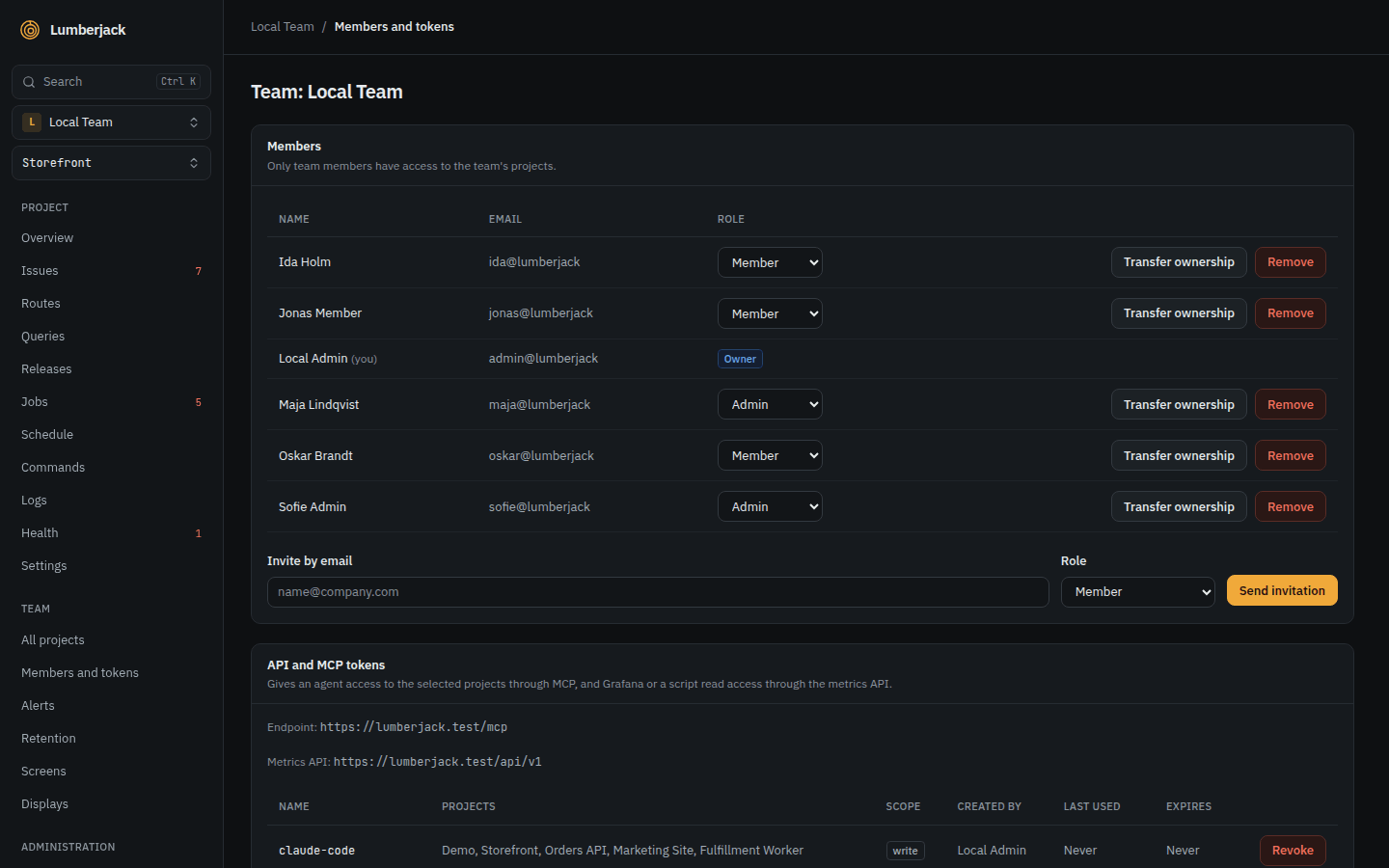
- Members: change a member's role, or Remove them. The owner cannot be removed or demoted. Transfer ownership, for the owner only, makes another member the owner and the old owner an admin.
- Invite by email: as Admin or Member. Open invitations can be sent again or revoked.
- API and MCP tokens: see MCP and the metrics API.
- Retention: the Team entry's second tab: the team's retention, read only for members.
Anyone can Create a team, with them as the owner. The team switcher at the top of the sidebar moves between teams. Each browser tab keeps its own team and project, also after a reload; a new tab starts with the team picked last.
Invitations
An invitation link opens a page to join the team:
- without an account, choose a name and a password, then Create account and join,
- with an account, Log in to accept,
- signed in as someone else, sign out first.
An expired or revoked link says Invitation expired.
First login
The first time you sign in, after any required password change and email confirmation, an onboarding of three steps opens, each with Skip.
- Welcome: your teams with their projects, and where things are: the sidebar, the command palette and the notification bell at the top of the sidebar.
- Notifications: pick a preset and change any cell. Next saves it as your notification settings.
- Quiet: what concerns you, in app only.
- Balanced: the defaults below.
- Everything: every kind in app and in the browser, mail as Balanced.
- Browser on this device: Enable on this device turns on browser notifications here. Not now skips it.
Show onboarding again at the bottom of Notifications in your account settings opens it again.
Your account
Profile and settings under your name at the bottom of the sidebar.
- Profile: your name and email. A new email has to be confirmed.
- Notifications: see Notifications.
- Security: asks for your password first, and again after 3 hours. Change your password, and turn on two-factor authentication with an authenticator app. Each recovery code signs you in once without the app. Regenerate codes replaces them, Disable 2FA turns it off.
- Appearance: light, dark or the system's.
Delete account on the profile also deletes the teams where you are the only member, with their projects. It is refused for the last active administrator, and for the owner of a team with other members until ownership is transferred.
In production a password needs at least 12 characters, upper and lower case, a number and a symbol, and must not appear in a known data breach. That is checked with Have I Been Pwned, so the server needs outbound HTTPS.
Signing in, two-factor codes and password changes are rate limited.
Notifications
Notifications in your account settings (also Settings in the bell's list) sets, for each kind, how you hear of it:
- Mail,
- In app: kept in the notification center and shown as a toast while Lumberjack is open,
- Browser: a notification from your browser, also while Lumberjack is closed.
Alerts a rule sends to a team channel are separate, see alerts.
About you:
| Row | When | In app | Browser | |
|---|---|---|---|---|
| Issues you watch | Something happens to an issue you watch | on | on | off |
| Mentions | A note tags you | on | on | on |
| Assignments | Someone assigns you to issues or takes you off them | on | on | on |
Your projects, every project of your teams you can view:
| Row | When | In app | Browser | |
|---|---|---|---|---|
| New issues | A new error, a regression or an escalation, at the moments the team's alert rule of that type sends (its environments, its throttle), with or without channels; never browser errors | off | on | off |
| Health checks | A health check turns degraded or down, and when it is ok again. Muted checks stay quiet | off | on | off |
| Queue backlogs | A queue stays over the queue backlog rule's thresholds, and when it is back under. Muted queues stay quiet | off | on | off |
| Scheduled tasks | A scheduled task fails or is missed. Such an issue is told here instead of under New issues, never under both | off | on | off |
| Agents | An agent has sent no heartbeat for 5 minutes; once, until it is back. Several at once are one notification per project | off | on | off |
| Releases | A project's server reports a new release. The project's very first release is not sent | off | on | off |
The columns show the defaults. The presets Quiet, Balanced and Everything above the table fill it in, as in the first login. Mail about issues you watch is grouped, see watching. If your address is also a team mail channel, you get both.
Notification center
The bell at the top of the sidebar shows the unread count, up to 99+, and lists the latest 15. Opening a notification marks it read and takes you there, switching to that project's team if needed. Mark all as read clears the count.
See all opens the full history (Notifications in the command palette), with filters by unread or kind, and Mark as read or Mark as unread on each. It holds everything you got in app, from every team, for the retention period.
Browser notifications
Browser notifications are per browser: in each browser or phone, open Notifications in your account settings, click Enable on this device and allow notifications. The list below shows every browser they are on, with Remove. While a Lumberjack tab is in front, it shows the toast instead.
They need HTTPS or localhost. On an iPhone or iPad, add Lumberjack to the home screen first. The server needs no setup.
While Lumberjack is open
New issues, regressions and escalations show as a toast with View and play a chime, following your New issues and Scheduled tasks choices. Sound for new errors in the sidebar turns the chime on or off for this browser. Everything else you get in app shows as a toast too.
Limits
| What | Limit |
|---|---|
| Invitation link | Expires after 7 days |
| Password in production | At least 12 characters |
| Security settings | Ask for your password again after 3 hours |
| Notification bell | Lists the latest 15 |
| Notification history | 90 days, see retention |