Check whether a release went well
See whether a new release brought new errors, regressions, more server errors or slower responses than the one before.
1. Report the release
Every request, error and job carries the release it ran on.
Laravel SDK. The package uses the current Git commit, or the commit Composer installed vendor from when the deploy has no .git. To set it yourself, such as to a version number (at most 64 characters), put it in the app's environment:
LUMBERJACK_RELEASE=v2.14.0Browser script. Give the script tag the same release, so browser errors and Web Vitals carry it too:
<script
    src="https://lumberjack.example/sdk/v1.js"
    data-key="lj_pub_..."
    data-environment="production"
    data-release="v2.14.0"
    defer
></script>
The Laravel package's @lumberjack Blade directive fills in the release for you. See Projects for the script's attributes.
When it works: the release shows on the project's Releases page once the first requests on it come in.
2. Compare it with the release before
Open Releases in the sidebar. Every release seen in the period is a row, newest first.
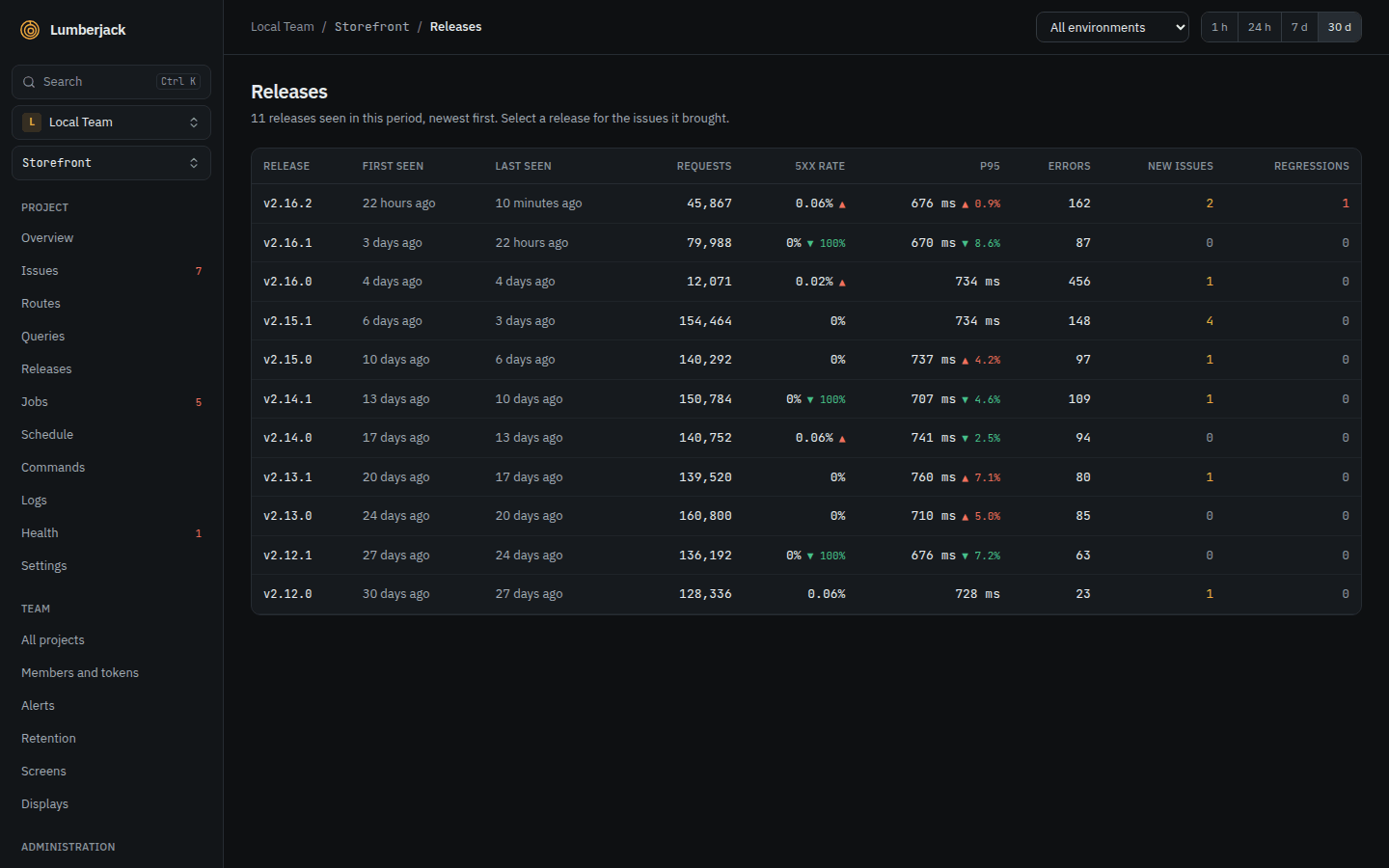
Read the new release's row against the one below it:
- 5xx rate and p95 have an arrow: red and up when worse, green and down when better.
- New issues: errors that first appeared on this release.
- Regressions: resolved issues that came back on this release.
- Errors: all error occurrences on this release.
Pick the environment at the top, and a short period such as 1 h to keep to the hours around the deploy.
3. Look at what it broke
The release's detail lists New issues in that release. Issues last seen in this release opens the issues list filtered to it; the list's Release filter does the same for any of the 20 newest releases.
When it went well: no new issues, no regressions, and green or no arrows next to the 5xx rate and p95.
4. Get told about new releases
To get a notification when a project reports a new release, click your name at the bottom of the sidebar, then Profile and settings, then Notifications, and turn on the Releases row.
New issues and regressions reach the team's channels through the New issue and Regression alert rules. See Get told when production breaks.
5. Show the release on a status screen
On a status screen:
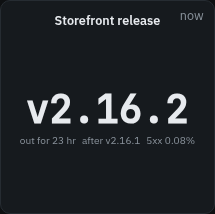
- A Stat widget with Current release shows the release running now, how long it has been out, and its 5xx rate against the release before.
- Every data widget over a period has a Release setting under Scope: All, Current only or Previous, so two charts side by side can compare them.
- A Chart can Split by Release, one line per release.