
Get told when production breaks
Send new errors, regressions, failing health checks and stuck queues to the right people. You need to be a team owner or admin to add channels and change rules.
1. Connect a channel
A channel is where alerts go. It belongs to the team, and every project can use it.
Open Team in the sidebar, then Alerts.
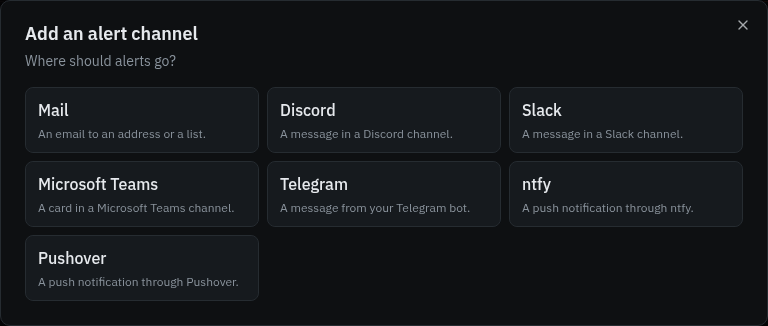
Click Add new channel and pick where alerts go:
Channel You need Mail An email address. Slack An incoming webhook URL. Discord A channel webhook URL. Microsoft Teams A Workflows webhook URL. Telegram A bot token and a chat id. The bot must be in the chat. ntfy A topic URL, and an access token for a protected topic. Pushover Your user or group key and an application token. Webhook Your own endpoint. Set it up in a project's settings. Follow the hint in the dialog to find the URL or keys, name the channel and save.
Click Send test on the channel.
When it works: the channel shows Delivered with the time. Failed means the other side refused the message: check the URL or keys.
2. Turn on the rules you want
Under Rules on the same page, each rule is on or off and sends to the channels you tick. A new channel is added to the rules that are on.
| Rule | Tells you about | Default |
|---|---|---|
| New issue | The first occurrence of a new error. | On |
| Regression | A resolved issue that happens again. | On |
| Escalation | An issue that suddenly happens far more often. | On |
| Queue backlog | A queue with too many jobs waiting, or waiting too long. | On |
| Health check degraded | A health check that keeps warning or starts failing. | On |
| Health check down | A health check that keeps failing. | On |
| Health check recovered | A health check that is ok again. | On |
| Note | Every note written on an issue. | Off |
| Resolved or ignored | Every issue someone resolves or ignores. | Off |
To alert only on production, type production in Environments. Empty means every environment.
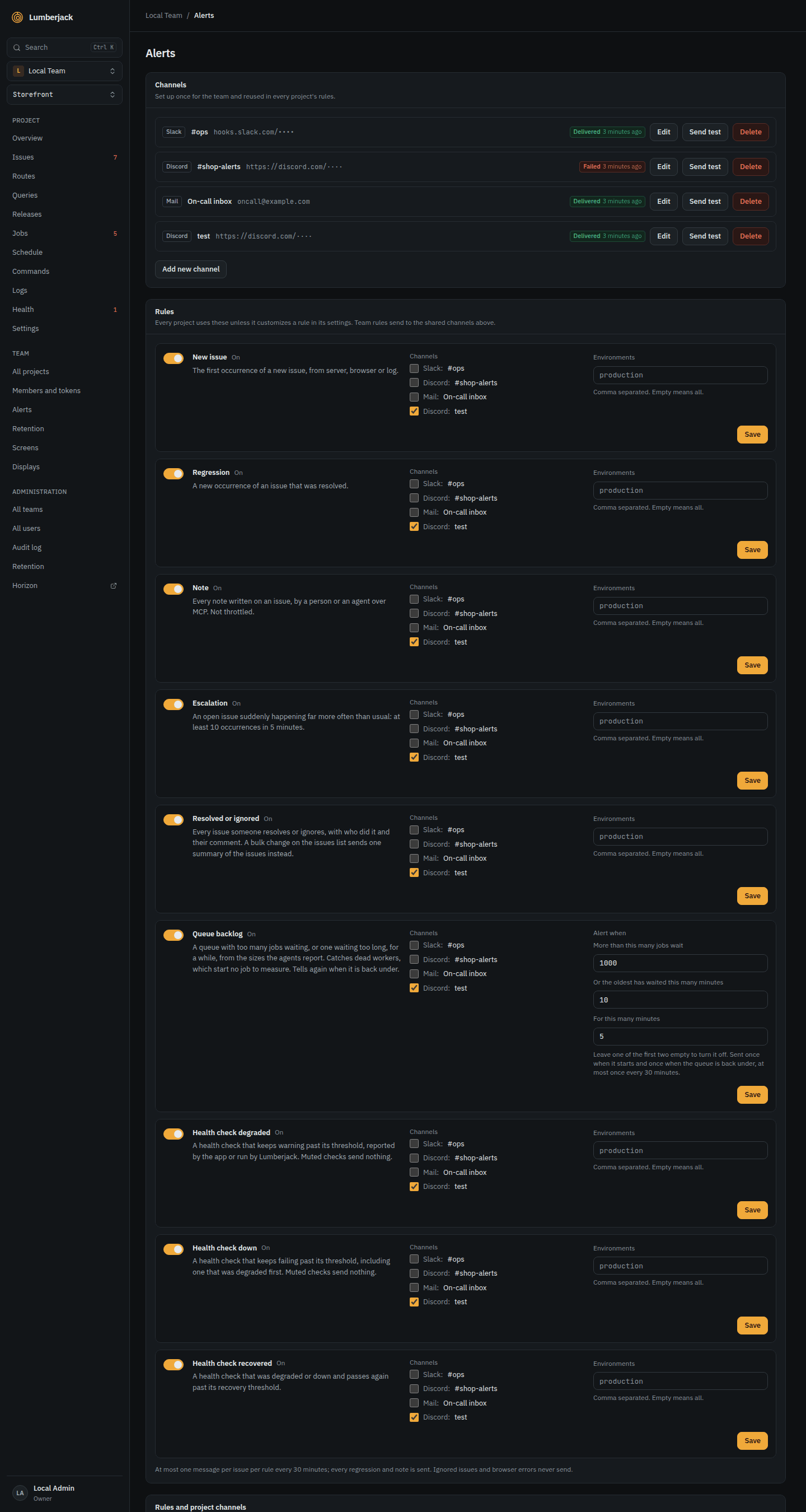
A new issue or escalation sends at most one message per issue every 30 minutes. Ignored issues and browser errors never send an alert.
3. Send one project somewhere else
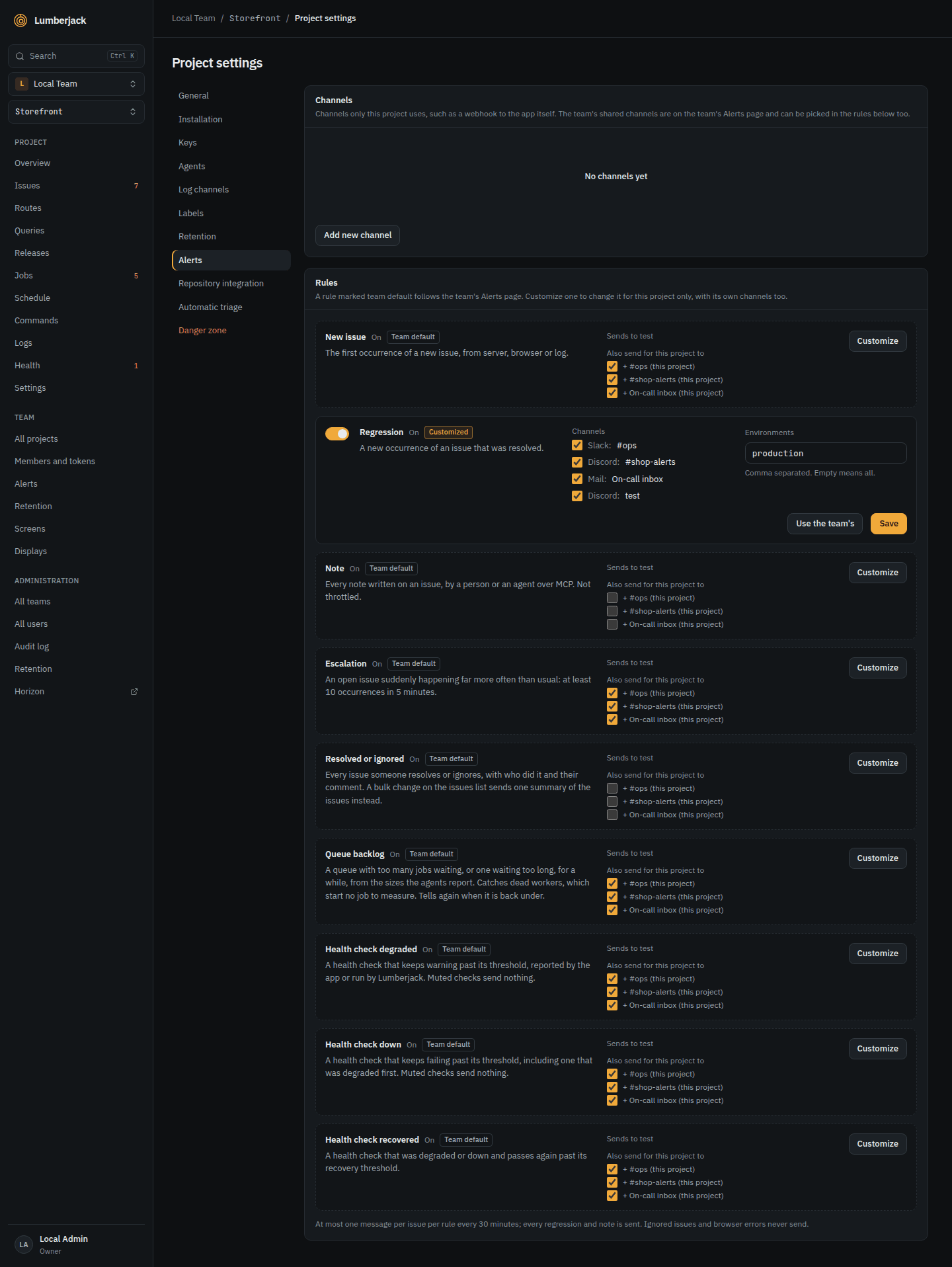
In the project's Settings, then Alerts:
- + channel (this project) under a rule marked Team default also sends this project's alerts to another channel.
- Customize changes the rule for this project; Use the team's goes back.
- The project can add its own channels, such as a Webhook to your own app.
4. Catch dead workers with the queue backlog rule
The Queue backlog rule fires when a queue has more than 1,000 jobs waiting, or the oldest job has waited more than 10 minutes, for 5 minutes. Change the numbers on the rule, or per queue with Alert in the Queues card of the project's Jobs page. See Watch background work.
5. Watch the things your app depends on
Add health checks on the project's Health page with Add check: HTTP, SSL certificate, TCP port, DNS record, or a Heartbeat your cron job calls. Your app can also report its own checks (database, cache, disks, queues) through the SDK. They alert through the three Health check rules, only after several bad results in a row. See Health.
Error rate and response time
There is no alert rule on a project's error rate or p95. To get close:
- Escalation fires when one error suddenly happens far more often than usual.
- An HTTP health check with Warn when slower than (ms) warns when a page gets slow, and fails on the wrong status.
- Alert on the Prometheus gauges
lumberjack_error_rateandlumberjack_request_duration_p95_secondsin Prometheus or Grafana. See Send metrics to Grafana.
6. Choose what you hear yourself
Each person also picks their own notifications:
- Click your name at the bottom of the sidebar, then Profile and settings, then Notifications.
- Pick a preset (Quiet, Balanced or Everything), or set Mail, In app and Browser per row: new issues, health checks, queue backlogs, scheduled tasks, agents, releases, and issues you watch.
- For notifications while Lumberjack is closed, click Enable on this device in each browser or phone.
Personal notifications for new issues, health checks and queue backlogs follow the team's rules: turning a rule off stops them too.
Reference
- Alerts: every channel, rule, override and the webhook body.
- Health: check types, thresholds and states.
- Teams and accounts: personal notifications and the notification center.