
Status screens
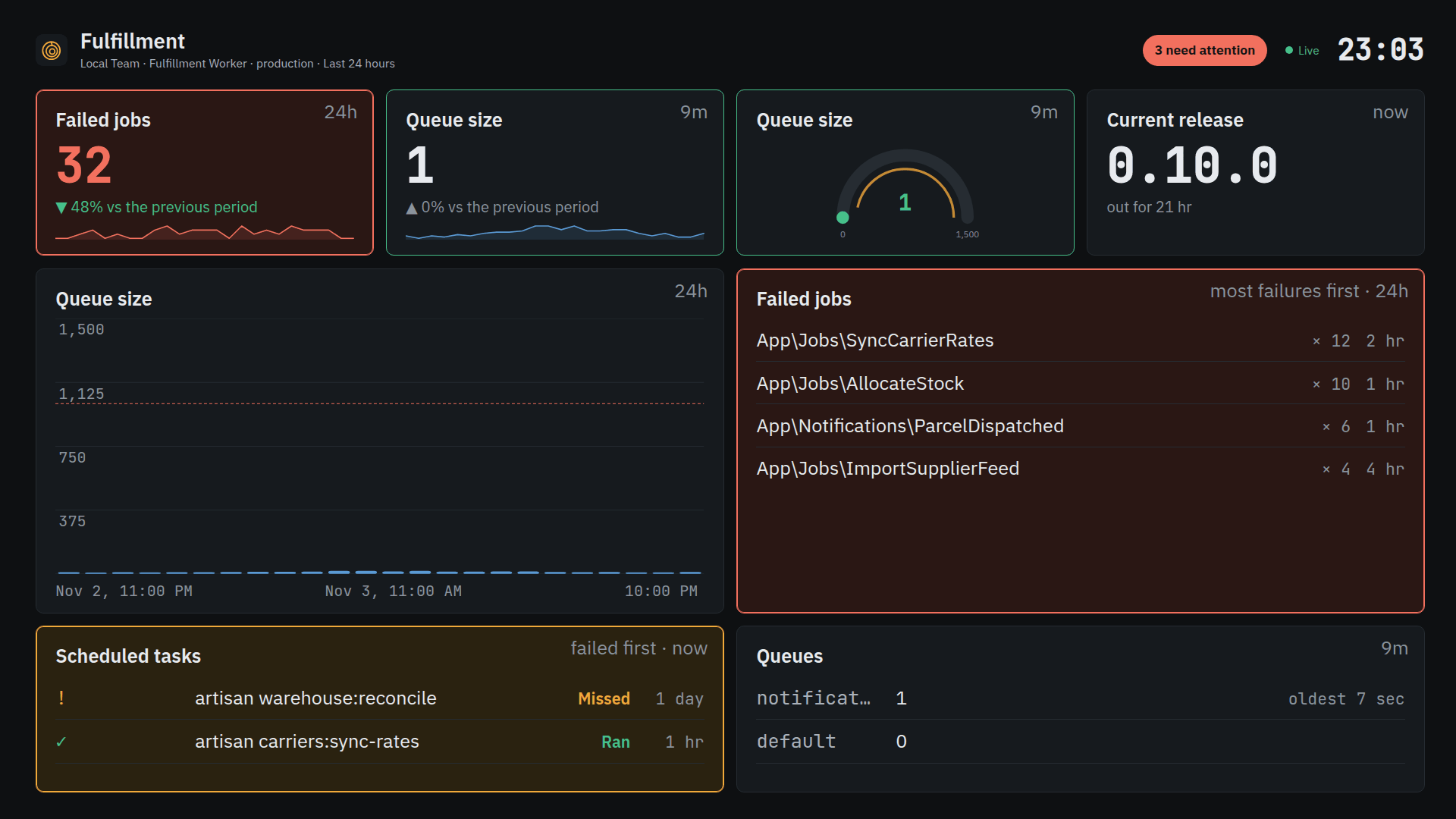
A status screen is a wall of widgets for a TV or monitor, readable from across the room. Every team member can create, design and delete screens.
The list of screens
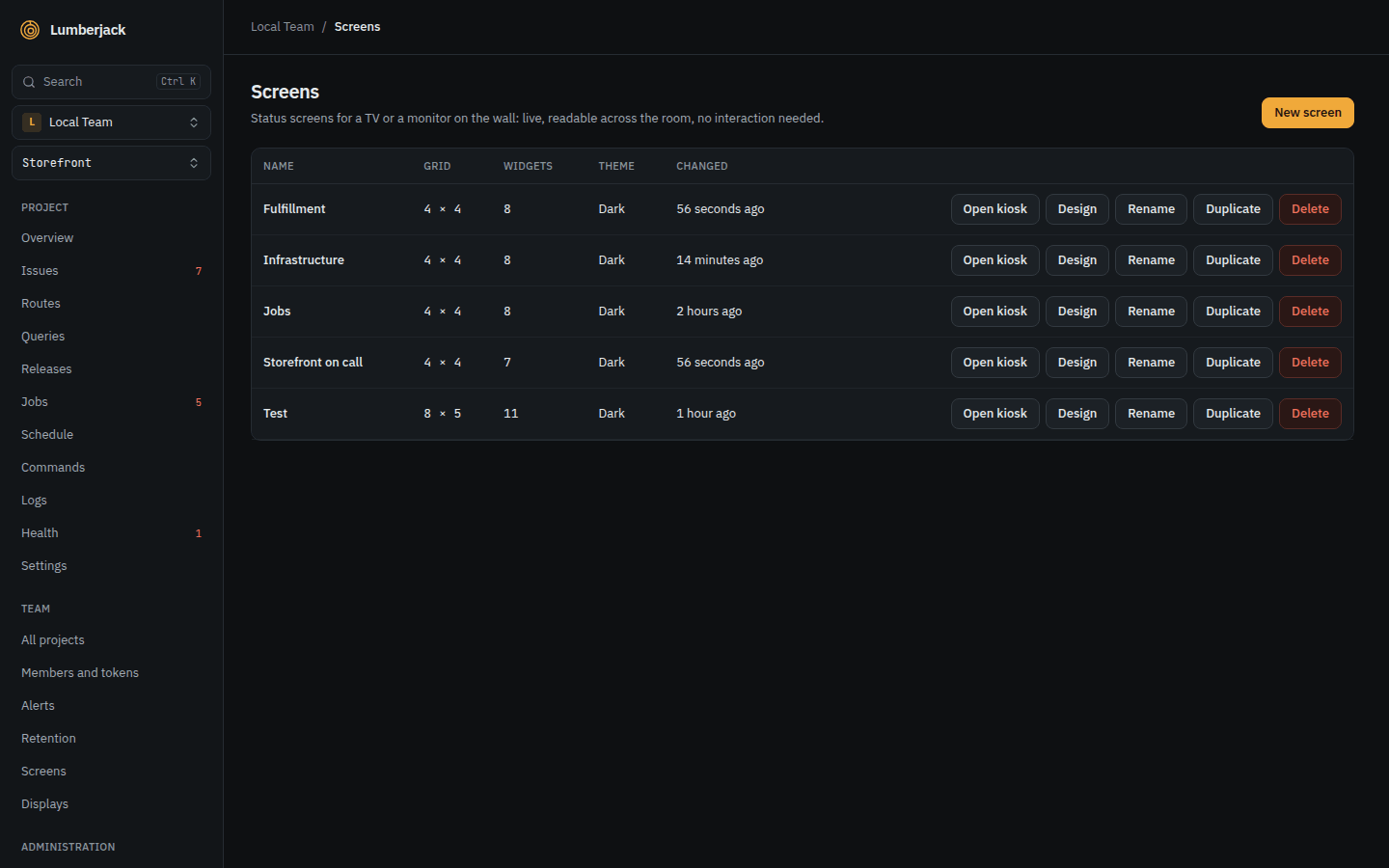
Screens in the sidebar lists the team's screens. Each row has Open kiosk (full screen in a new tab), Design, rename, duplicate and delete, and under More: Export, Copy to team... and Save as template.
The Shown on column shows who is watching:
- 3 now: kiosks, paired TVs and share links that have the screen open right now.
- 2 paired TVs: TVs set to show the screen, alone or in turn with others.
- Shared: the screen has a share link.
A TV that shows a deleted screen says This screen was deleted.
Create a screen
Press New screen, give it a name and pick a layout to start from.
| Layout | Shows |
|---|---|
| Overview | Traffic, errors, latency, issues, health, queues and hosts. |
| On call | Errors, newest issues, failing checks and alerts. |
| Infrastructure | CPU, memory and disk per host, agents and every health check. |
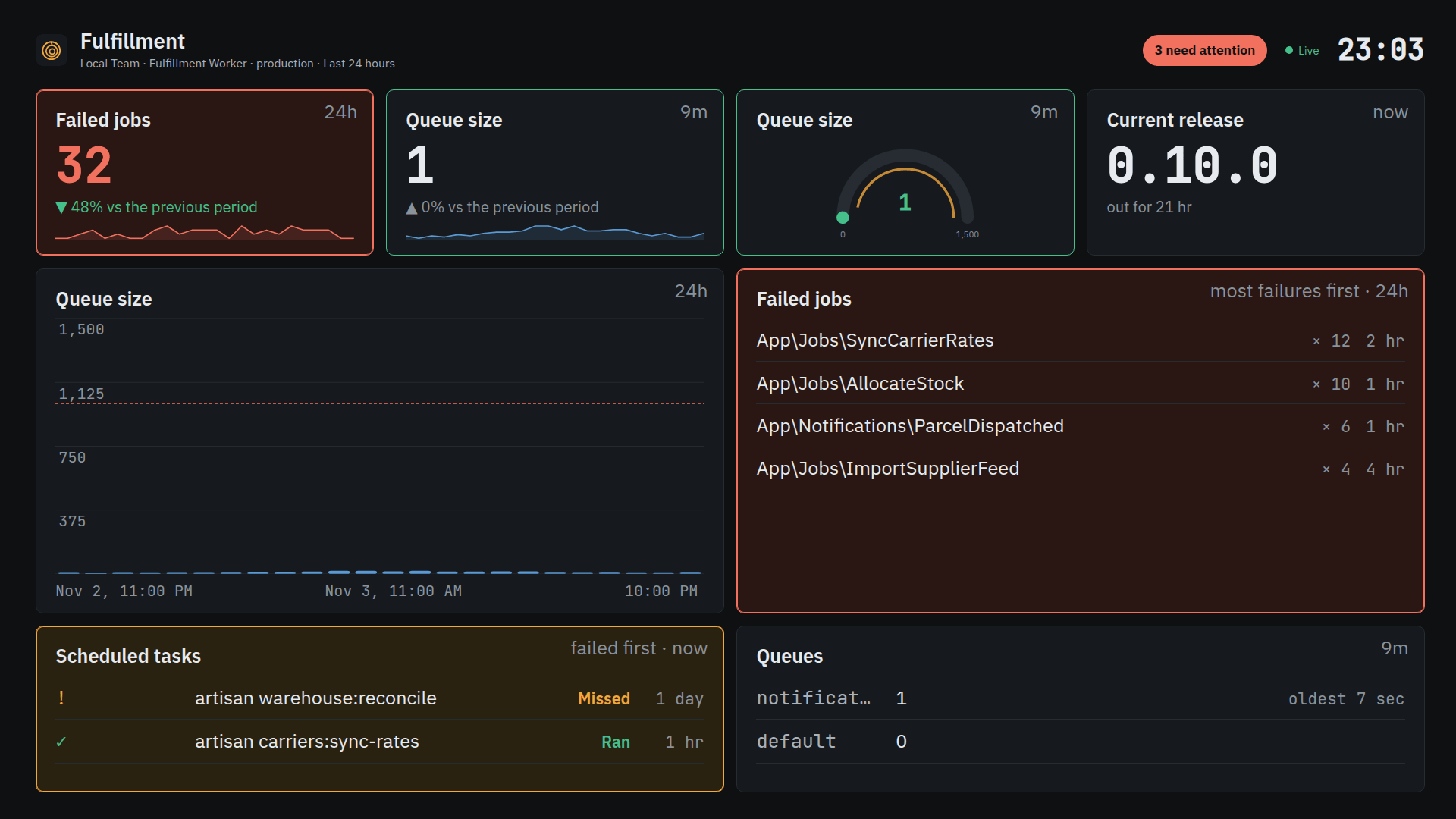
| Jobs and schedules | Failed jobs, queue sizes and how the scheduled tasks ran. |
| Empty | An 8 x 4 grid to fill yourself. |
The widgets in a layout are ordinary widgets.
Team templates
More > Save as template saves a screen as a team template, with a name and a short description. New screen then offers it to every member under Saved by the team. Later changes to the screen do not change the template.
Team templates, below the list of screens, shows the saved templates. Team admins can edit their name and description or delete them; screens made from a template stay as they are.
Export and import
- Export (under More, and in the designer's top bar) downloads the screen as a JSON file, such as
ops-wall.lumberjack-screen.json, with the grid, the settings and every widget, but no share link or paired TVs. - Import, above the list, takes such a file, picked or pasted, and shows what it holds before Import screen creates the screen.
- More > Copy to team... copies the screen to another team you are in.
Projects and health checks are matched by slug in the target team. Any that the team does not have are left out, and Lumberjack names them. A file of another format or version, or with widgets the designer cannot save, is rejected with the reason.
The designer
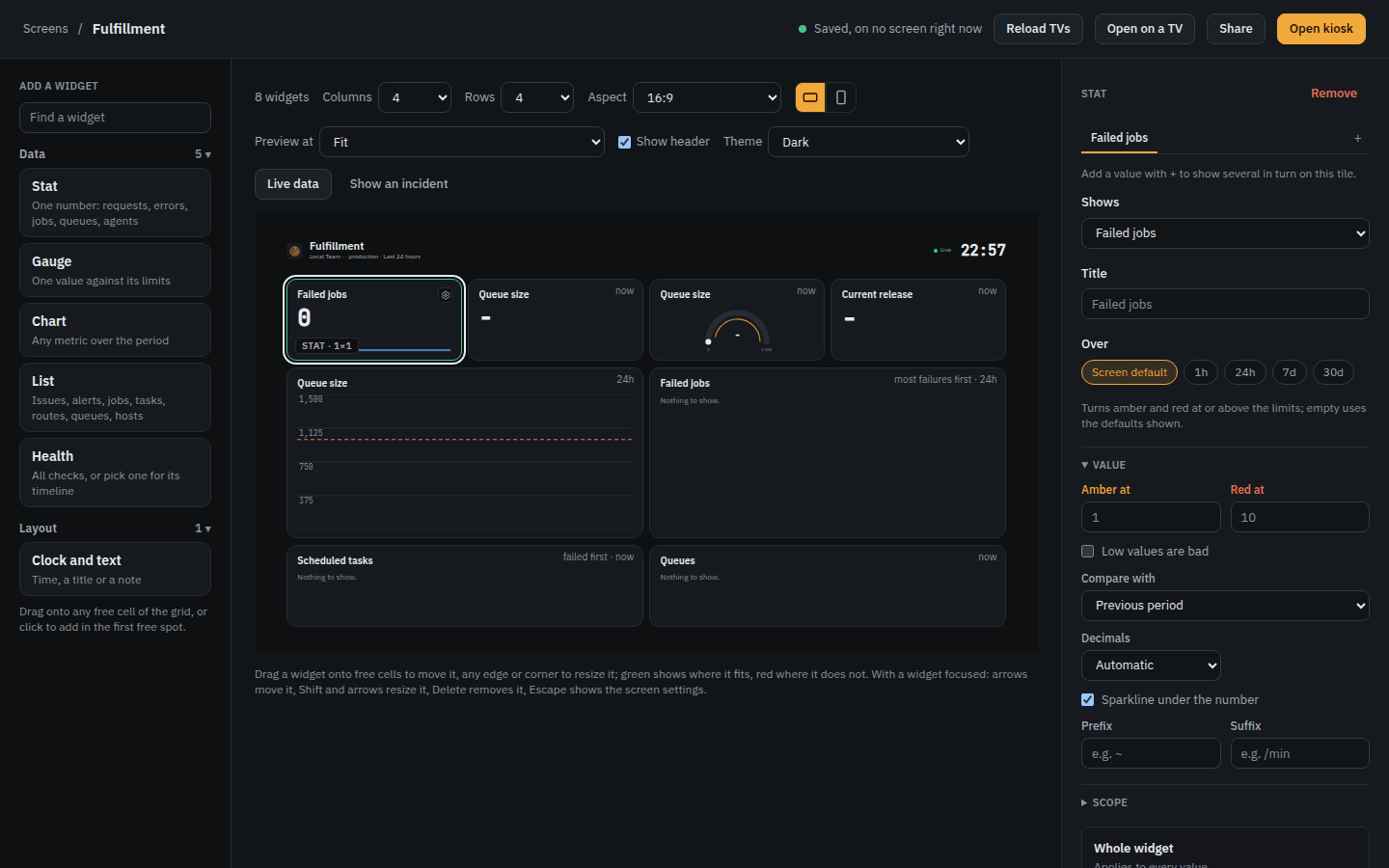
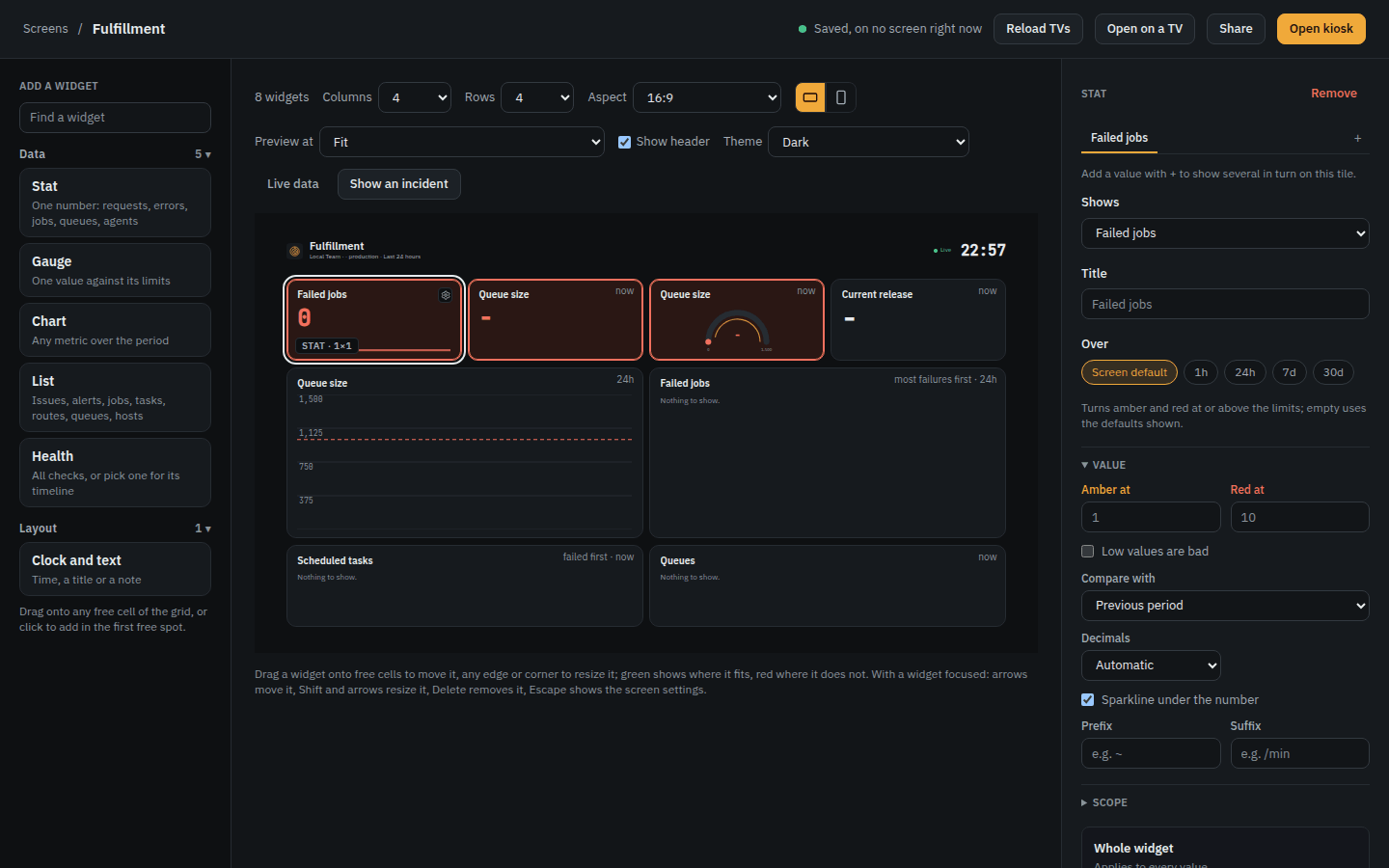
The designer shows the widget types on the left, the grid in the middle, and on the right the settings of the selected widget, or the screen's settings when none is selected.
Changes save automatically, and every TV that shows the screen updates within a second. The top bar shows the save state and how many screens show it live. Reload TVs makes every kiosk, paired TV and share link that shows the screen reload its page.
Arrange widgets
- Add: drag a widget type onto a free cell, or click it to add it to the first free cell. A new widget is 1 x 1. The search field finds a type by what it can show, so "queue" finds Stat, Gauge, Chart and List.
- Move: drag a widget to other cells. Dropping it on other widgets of the same total size swaps them.
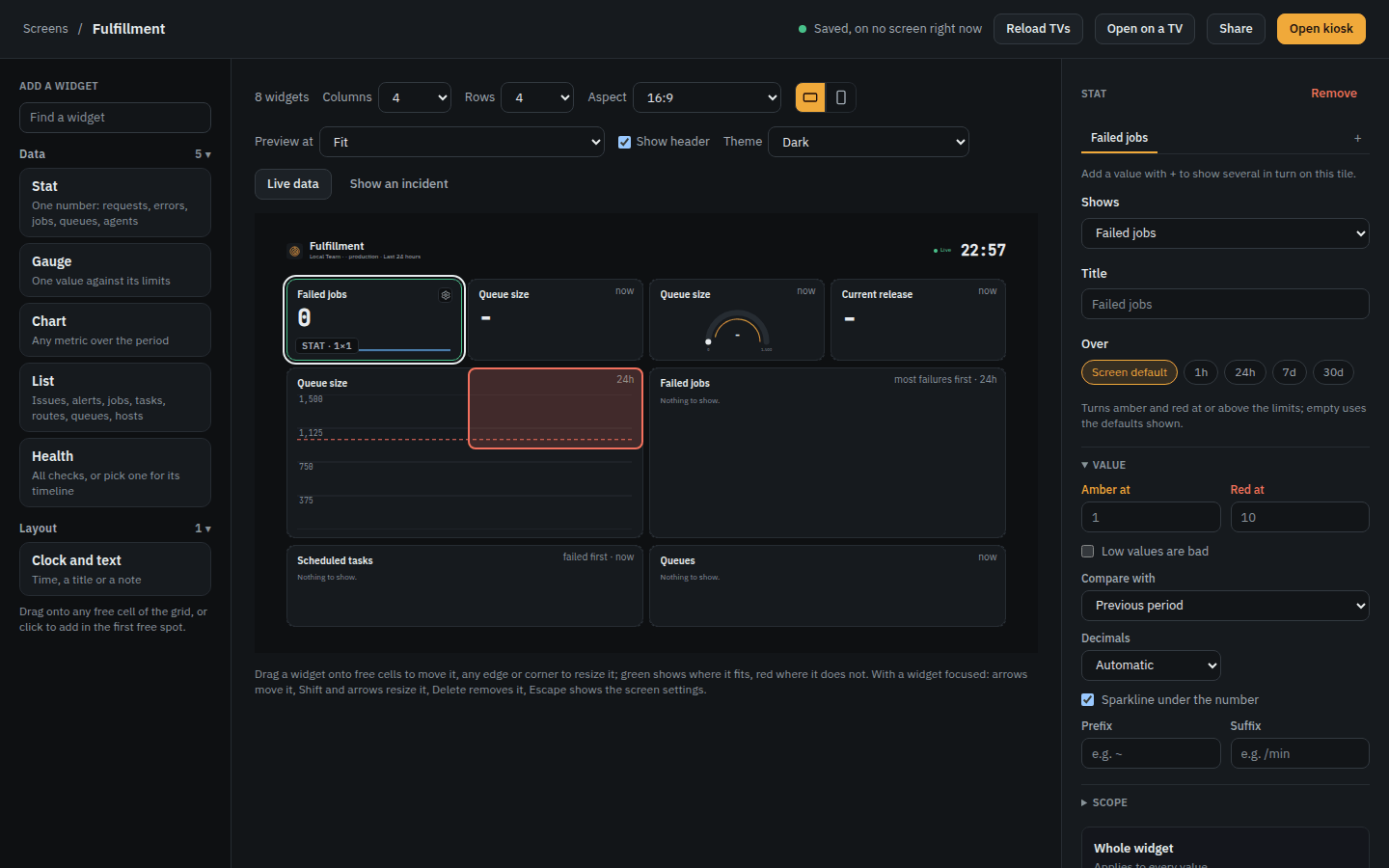
- Resize: drag any edge or corner. A widget only grows into free cells.
- Remove: select the widget and press Delete.
The grid
A screen is a grid of 2 to 12 columns and 2 to 12 rows. A widget's size in cells is its size on the TV.
- Aspect is the shape of the display: 16:9 (the default), 16:10, 4:3, 21:9 or 32:9, landscape or portrait.
- Preview at shows the screen at a given resolution: Fit (the default), the size each TV showing the screen reports, common resolutions for the aspect, or Custom. It is a setting of your browser, not of the screen.
If you make the grid smaller, widgets that no longer fit are listed above the grid and do not show on the TV until you place them again or remove them.
Screen settings
Click the grid's background, press Escape, or use Screen settings in the toolbar:
- Name.
- Projects, environment and period: what every widget shows unless it picks its own. No project ticked means every project of the team, new ones included.
- Time zone: for the clock and the theme schedule. Empty means each TV uses its own.
- Show header, and Show the clock in the header in 24 or 12 hours. The header shows the screen's name, projects and period, how many widgets need attention, whether it is live, and the time.
- The theme.
- On a different screen: on a display of another shape, Keep its shape (the default) centers the screen with bars around it, and Fill the display stretches it.
Incident mode
Show an incident previews the screen in trouble (an issue escalating, a check down, values past their limits) to judge colors and rotation. Live data returns to the real numbers.
Widgets
Data widgets pick what they show under Shows, grouped by topic. Widgets describes each one.
| Widget | Shows |
|---|---|
| Stat | One number with its trend and a sparkline: requests, errors, latency, jobs, queues, hosts. |
| Gauge | One value on a half circle against its limits. |
| Chart | A series over the period, as bars, an area or a line, or split by route, queue, host and more. |
| List | Rows: issues, alerts, failed jobs, scheduled tasks, routes, queues, hosts, agents, calendars. |
| Health | The health checks: a count, a list or cards, or one check with its timeline. |
| Project overview | Every project of the scope as a traffic light, with the reason. |
| SLO | An availability or latency objective and its error budget. |
| Clock and text | The time, a note for the room, and the time in other cities. |
| Countdown | The time left to a moment, or to a calendar's next event. |
| Message | A note or a running ticker, colored by its tone. |
| QR code | A link, a wifi network or any text to scan. |
| Image, video or page | An image or camera, a video, YouTube or a web page; several as a slideshow. |
A widget's settings start with those of its type (Value, Scale, Chart, Rows, Checks and so on), then Rotation and Scope. The gear on the tile opens Display.
On the TV
Open kiosk (/present/screens/<id>) shows the screen full screen in a signed-in browser, with large type and no menus. The picture shifts a few pixels now and then to protect the panel from burn-in.
Data updates within seconds of a change and at least every minute. When Lumberjack cannot be reached, the screen says Offline since with the time, dims the numbers it has, and retries every 30 seconds.
For a TV that should not sign in, pair it instead.
Set up a TV
The TV shows a code, and a signed-in phone or laptop confirms it. Only team admins pair TVs.
- On the TV, open
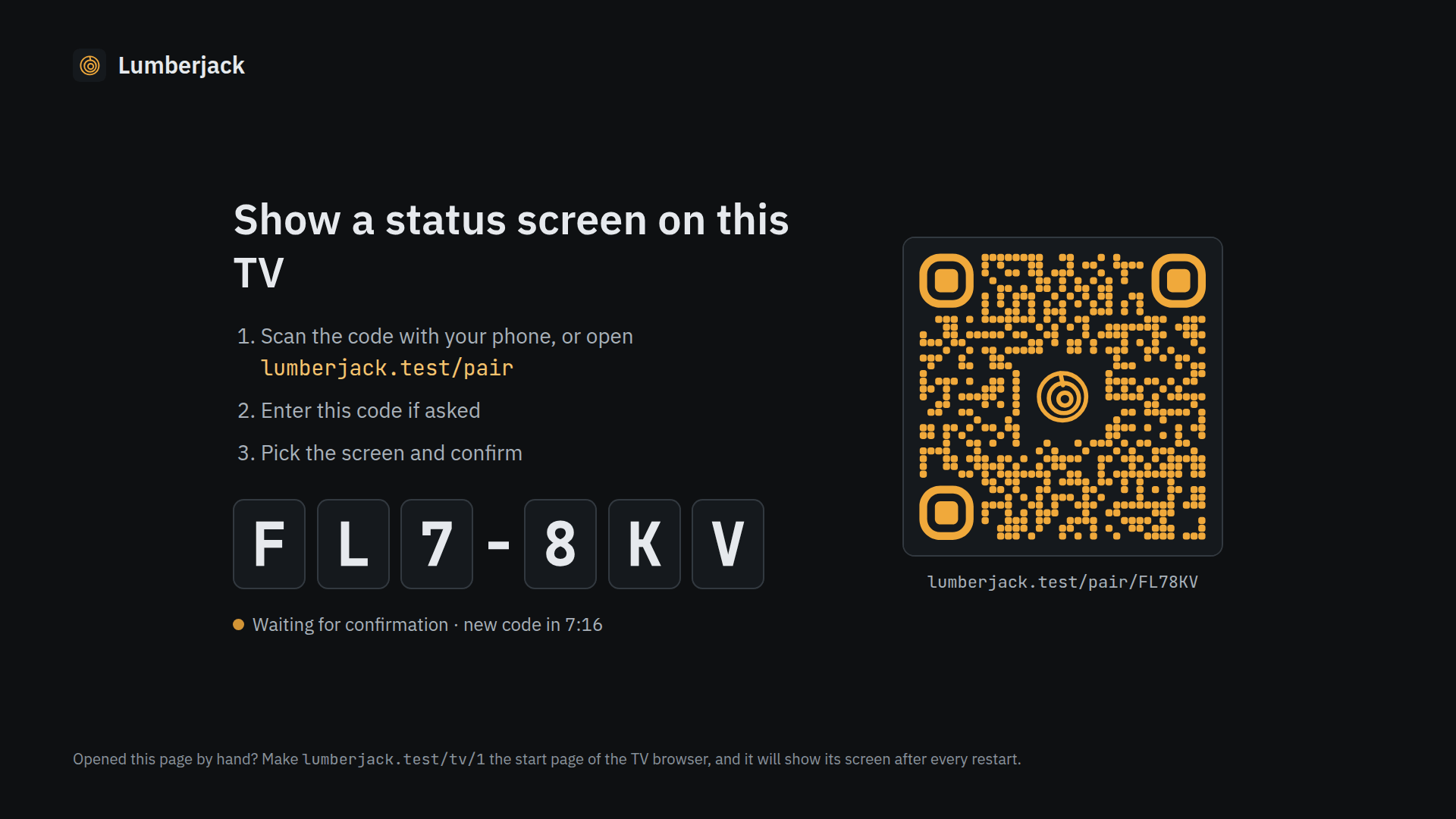
/tvon your Lumberjack, such aslumberjack.example.com/tv. Any browser works: Fire TV Silk, Android TV, Fully Kiosk Browser, or Chromium--kioskon a Raspberry Pi. The TV shows a code such asK7Q-M2Xand a QR code. - On your phone, scan the QR code, or open
/pairand type the code. Check that the page names the right browser, such as Fire TV · Silk. Pick the screen, name the device ("Office TV") and press Show on the TV. - The TV shows the screen at
/tv/1. Make/tv/1the TV browser's start page, and the screen comes back after every restart.
The TV stays signed in until you remove it under Displays. A code lasts 10 minutes and works once.
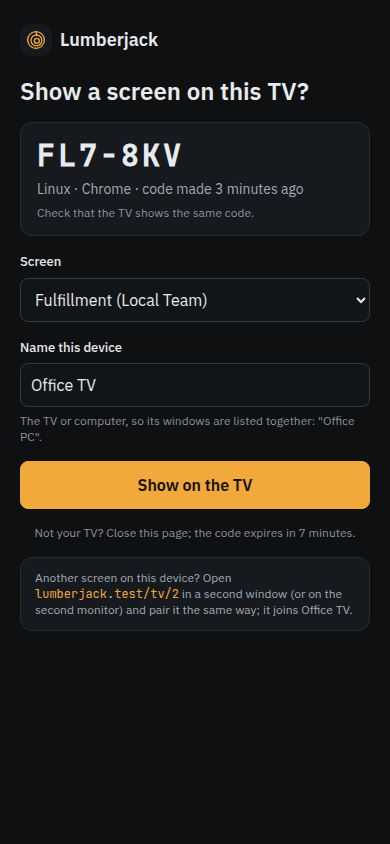
Open on a TV in the designer shows the same steps. Below them, team admins see the TVs already paired: Show here switches one to this screen, and Identify shows its name on the TV.
On a paired TV, /tv lists the device's windows as large buttons to pick with a remote, and Add another window.
Several screens on one computer
One computer can drive up to nine screens, such as two monitors or two browser windows. The computer is one device, and each window has its own address, /tv/1 to /tv/9, in the same browser.
- Pair the first window as above, and name the device ("Office PC").
- In a second window, open
/tvand press Add another window, or open/tv/2directly. It shows a new code. - Confirm the code on your phone. The page says Add window 2 to Office PC and asks only which screen window 2 shows.
Displays
Screens > Displays lists the team's paired devices. Each card shows the device's name, browser, number of windows, and whether it is Online or when it was last seen, and below it its windows, each with its screen, rotation, theme, size and status.
Every member can see displays. Only team admins can change them.
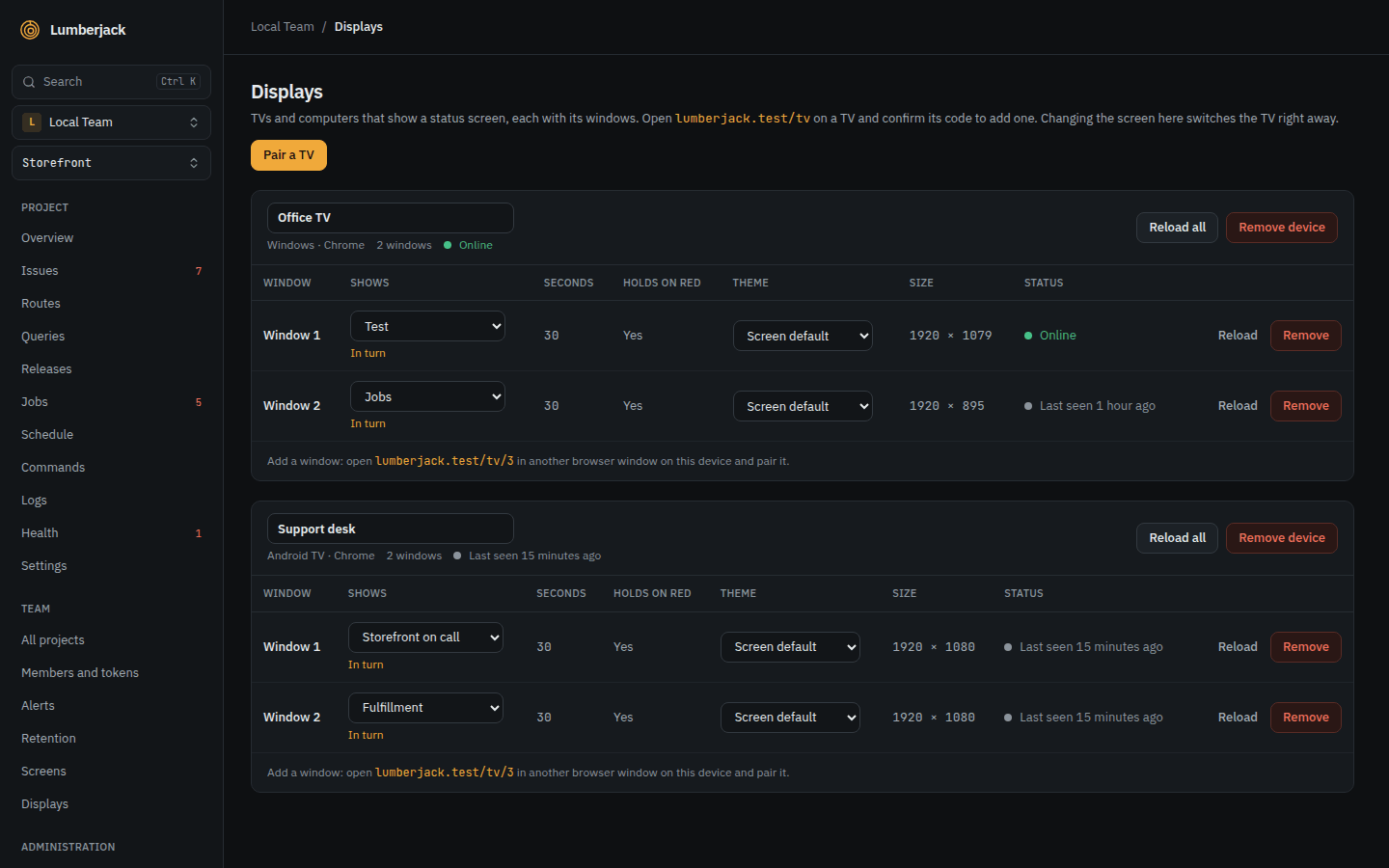
For a device:
- Name.
- Reload all: every window reloads its page.
- Remove device: every window goes back to showing a pairing code.
For a window:
- Shows: the screen it shows.
- In turn: show several screens one after another. See Screens in turn.
- Theme: Screen default, Dark, Light or By time of day.
- Rotation: None, 90° right, 180° or 90° left, for a TV hung sideways or upside down that cannot turn its picture itself. A kiosk link takes the same as
?rotate=90,180or270. - Identify: the TV shows its name over the screen for 10 seconds.
- Reload: the window reloads its page.
- Remove: the window goes back to showing a pairing code. Removing a device's last window removes the device.
Screens in turn
In turn on a window picks several screens to show one after another, in the order you set. Each stays 10 seconds to an hour (30 seconds by default). With Stay on a screen while it has something red, a screen with a red widget stays until it clears.
A single widget can also rotate through several values. See Rotation.
Share links
A share link shows a screen without signing in, at /s/<key>, for signage systems or pages that embed a URL. Prefer pairing where you can: a paired TV needs no link that could be passed on.
In the designer, press Share, then Share with a link. You can copy the link, replace it with New link, or turn it off with Stop sharing. A screen showing a link that no longer works says This screen was unshared. Only team admins share screens, and every change goes in the audit log.
Unless Show issue titles and names, not only counts is ticked, a share link leaves out issue titles, alert channel names and health check messages, and numbers hosts and agents ("host 1"). Health check names still show, so rename a check in Health if its name gives too much away.
Theme
Each screen is Dark (the default), Light, or Light by day, dark at night between two times in the screen's time zone. A display can override it under Displays.
Keyboard
| Where | Key | Does |
|---|---|---|
| Designer | Arrow keys | Move the focused widget one cell. |
| Designer | Shift + arrow keys | Resize the focused widget. |
| Designer | Delete or Backspace | Remove the focused widget. |
| Designer | Escape | Show the screen's settings. |
/tv on a TV | Arrow keys and Enter | Pick a window. |
Limits
| Limit | Value |
|---|---|
| Grid | 2 to 12 columns and rows |
| Widgets on a screen | 48 |
| Windows per device | 9 |
| Pairing code lifetime | 10 minutes |
| Screen file to import | 256 KB |