
Put a status screen on a TV
Show requests, errors, issues, queues and health checks on a TV in the office.
Every member can make and design screens. Pairing a TV and sharing a screen by link need a team owner or admin.
1. Create a screen
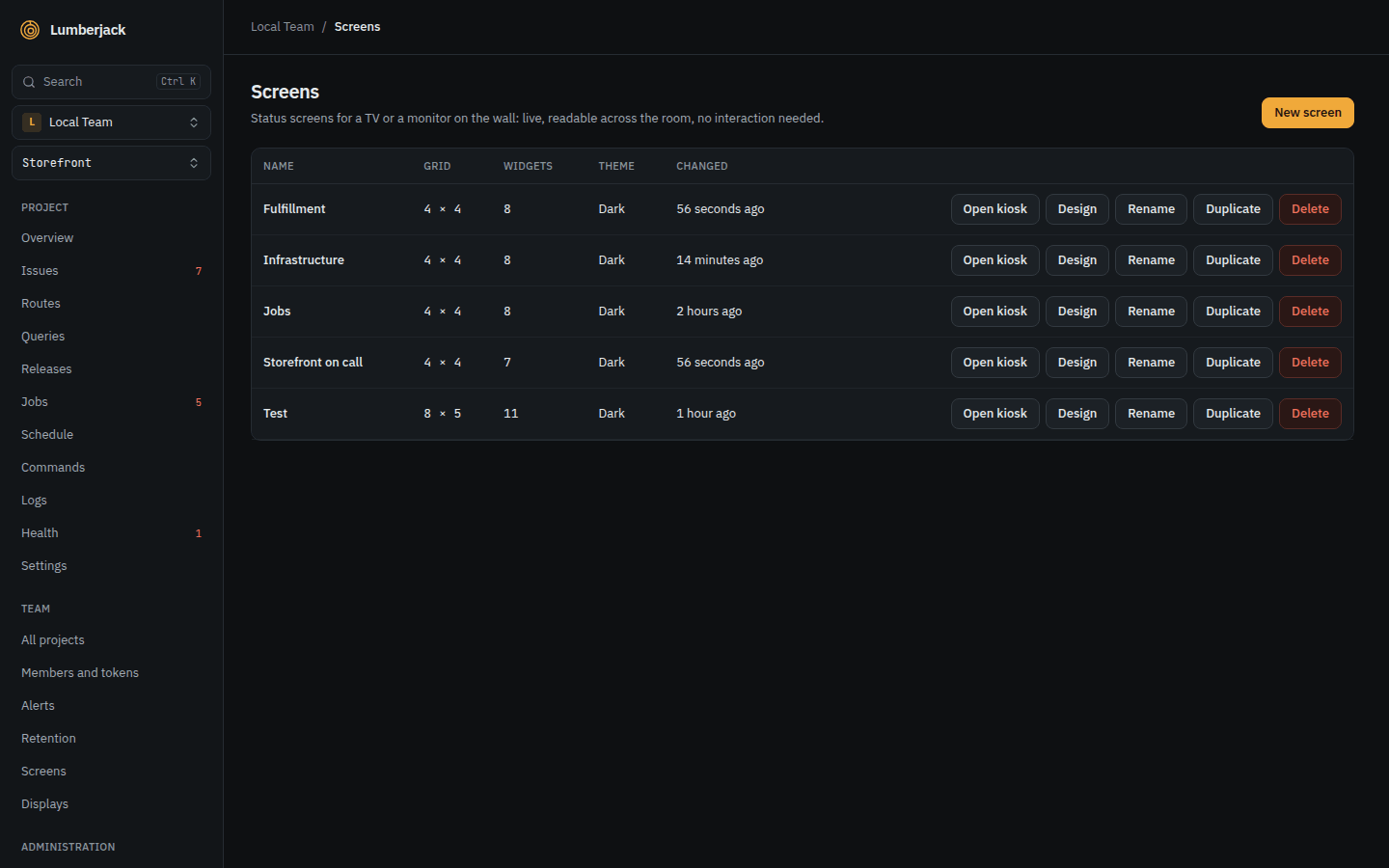
Open Screens in the sidebar and click New screen.
Name it and pick a layout to start from:
Layout Shows Overview Traffic, errors, latency, issues, health, queues and hosts. On call Errors, newest issues, failing checks and alerts. Infrastructure CPU, memory and disk per host, agents and every health check. Jobs and schedules Failed jobs, queue sizes and how scheduled tasks ran. Empty An empty grid to fill yourself. Templates your team saved show here too, marked Saved by the team.
2. Add and arrange widgets
The designer has the widget types on the left, the screen in the middle and the settings of the selected widget on the right.
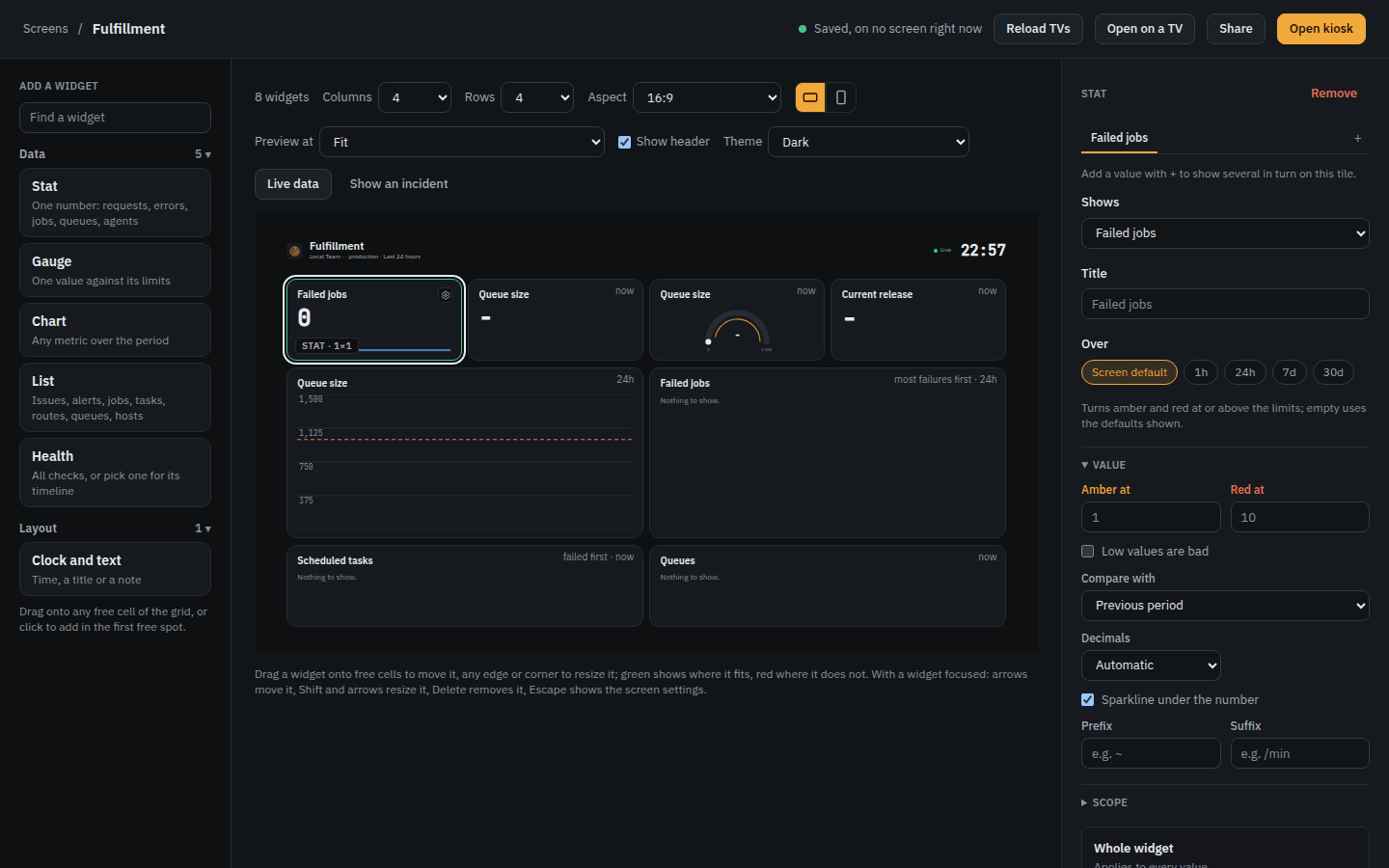
- Click the grid's background for the screen's settings: the projects, environment and period the widgets show, and Columns, Rows and Aspect to match the TV.
- Drag a widget type onto a free cell, or click it to add it in the first free spot. Drag a widget's edges to resize it.
- Pick what a widget shows under Shows, such as a Stat with Error rate or a List of the newest issues.
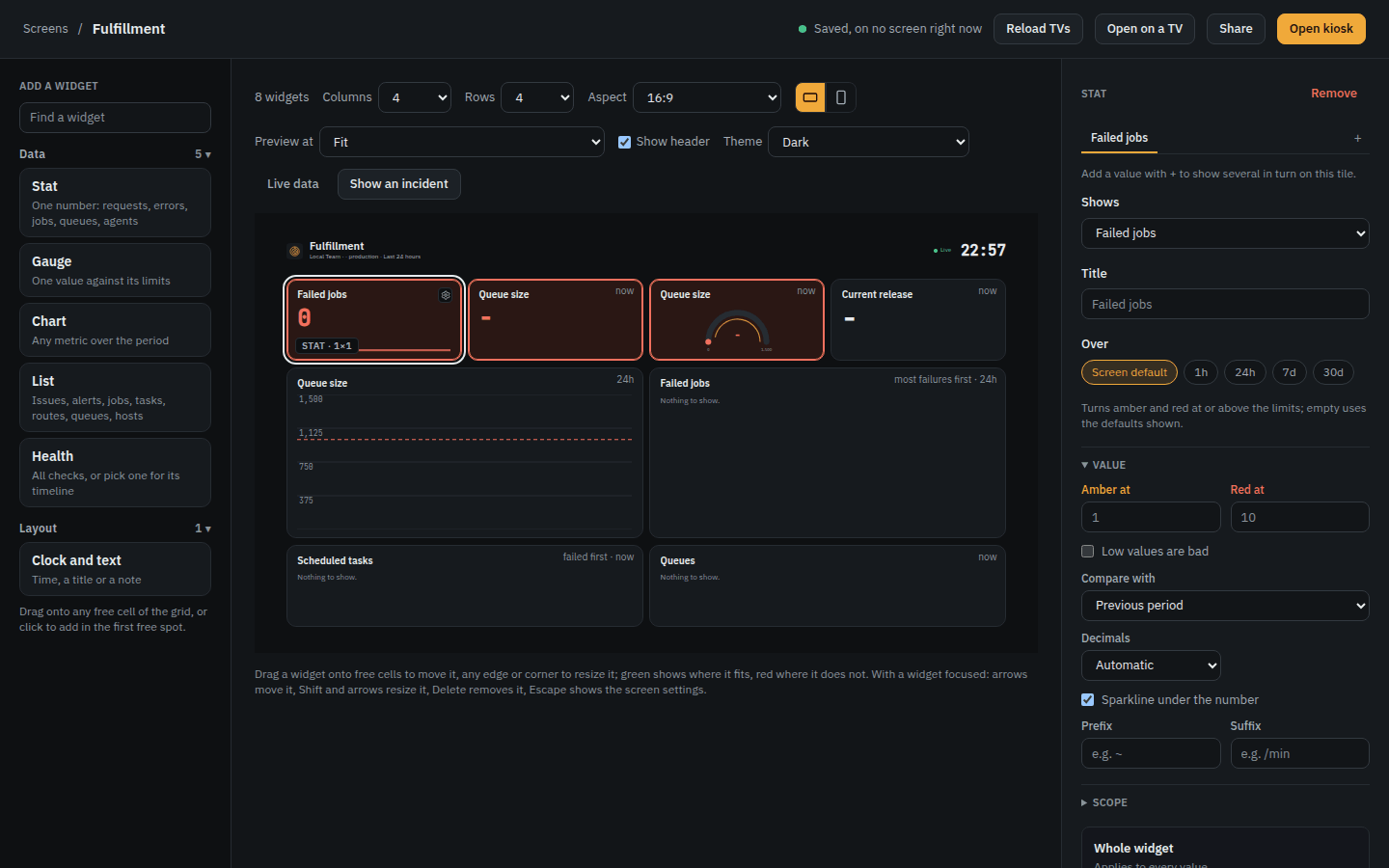
- Amber at and Red at set where a tile changes colour.
Every TV showing the screen follows a change within a second.
Show an incident previews the screen when things go wrong; Live data goes back to the real numbers.
3. Pair the TV
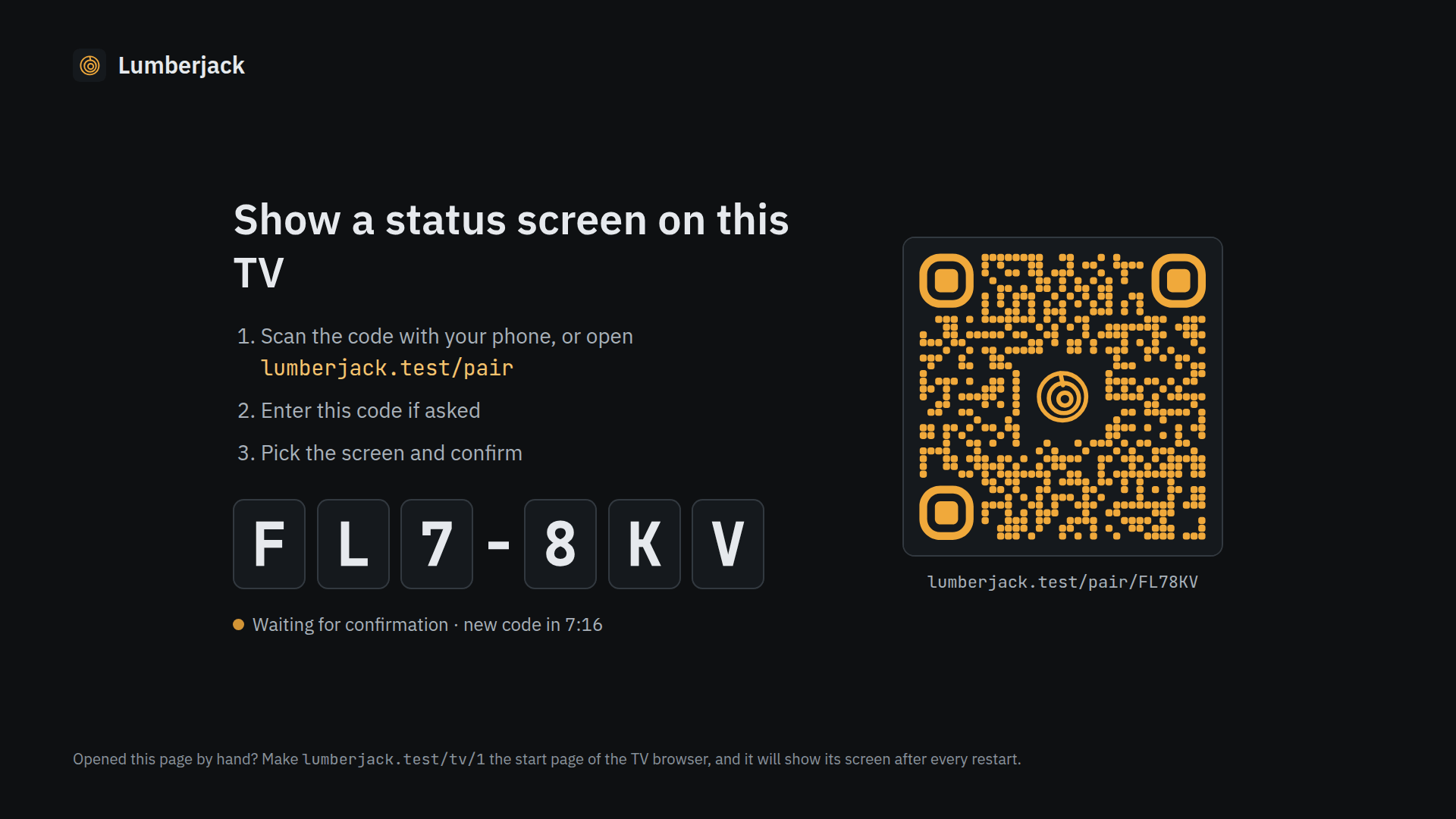
- On the TV's browser, open
/tvon your Lumberjack, for examplelumberjack.example.com/tv. It shows a six character code and a QR code. - On your phone, scan the QR code, or open
/pairand type the code. - Pick the screen, name the TV and press Show on the TV.
- The TV shows the screen at
/tv/1. Make/tv/1the start page of the TV's browser, so it comes back after a restart.
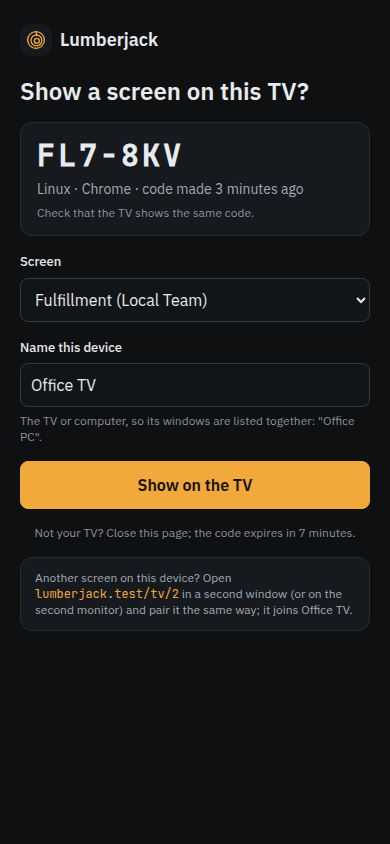
When it works: the screen fills the TV and the header says it is live. If Lumberjack cannot be reached, the screen says Offline since and dims the numbers.
Open on a TV in the designer shows the same steps, and lets an admin put the screen on an already paired TV with Show here.
4. Manage the TVs
Screens > Displays lists every paired TV, whether it is online, and what it shows. For each window you can:
- switch it to another screen under Shows;
- show several screens In turn, 10 seconds to an hour each. A screen with something red stays until it clears;
- force a Theme;
- turn the picture under Rotation;
- Identify it, to tell TVs apart on a wall;
- Reload it.
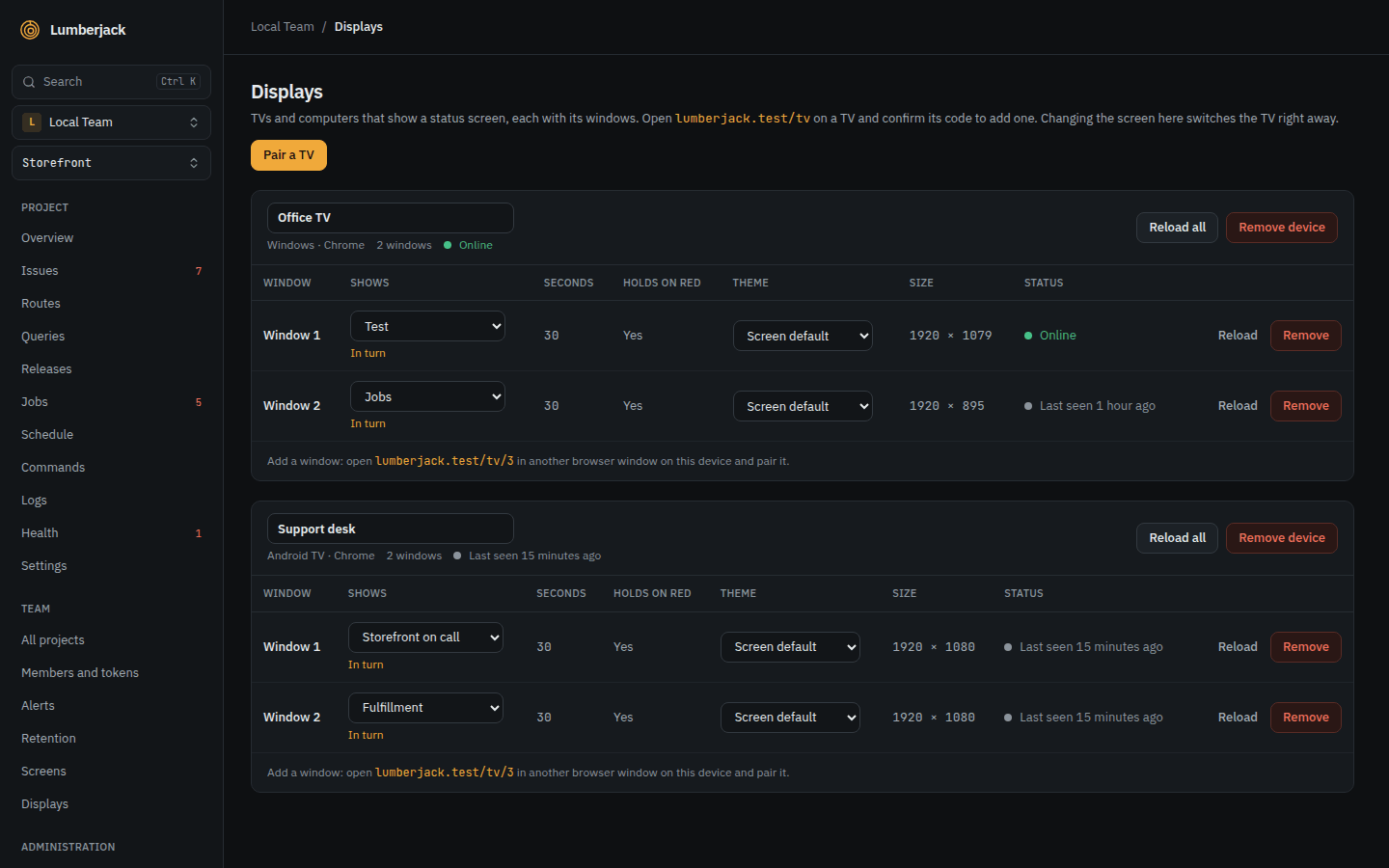
One computer can drive up to nine windows: open /tv in another window and click Add another window.
5. Share a screen by link
For a signage system that only takes a URL:
- In the designer, click Share, then Share with a link.
- Copy the
/s/...link. Anyone with it can see the screen without signing in.
Issue titles, alert channel names and health check messages are left out unless you tick Show issue titles and names, not only counts. New link replaces the link and Stop sharing turns it off.
Prefer pairing where you can: a paired TV needs no link that could be passed on.
Reference
- Status screens: the designer, pairing, displays, share links, templates and export.
- Widgets: every widget and its settings.