Themes
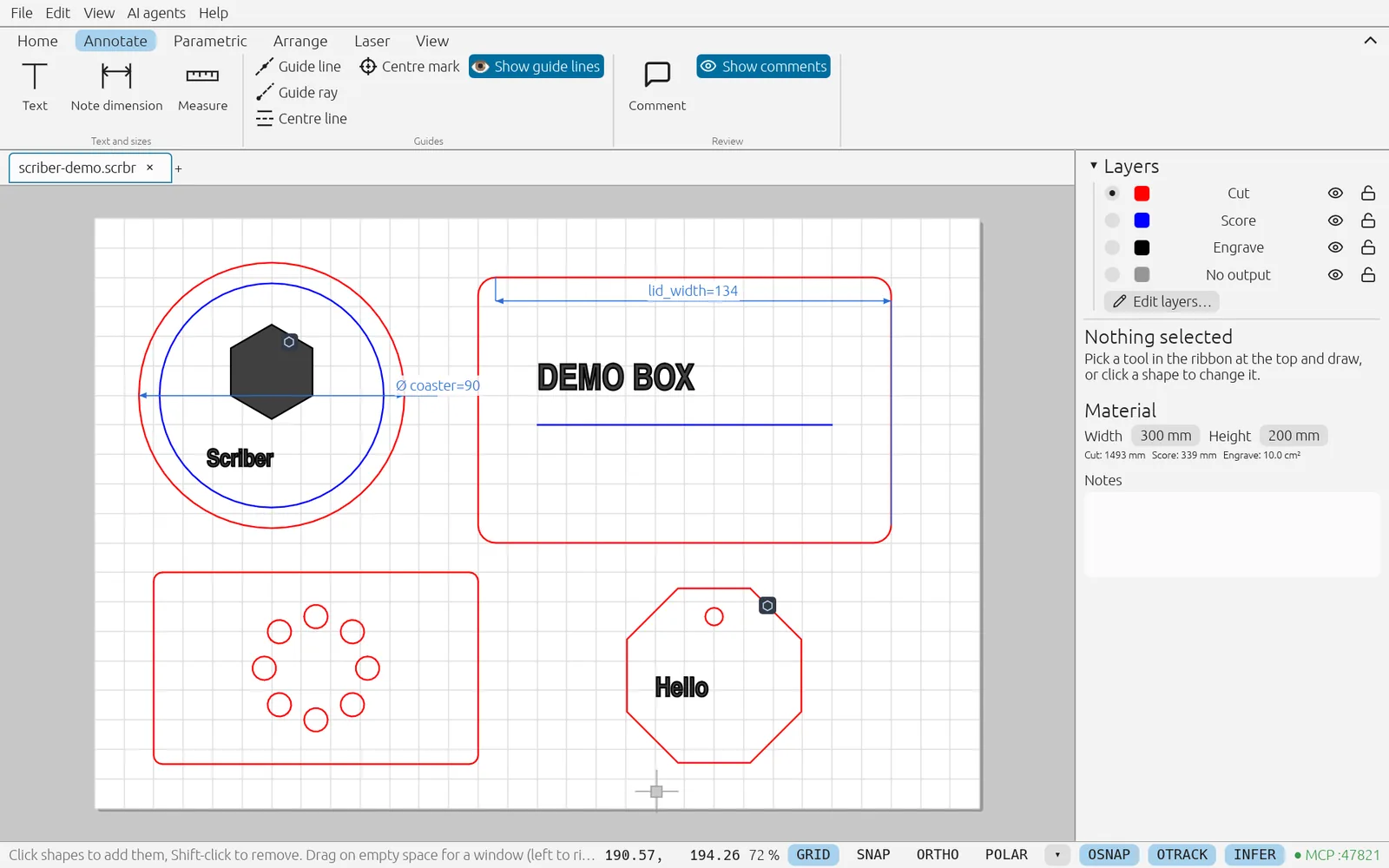
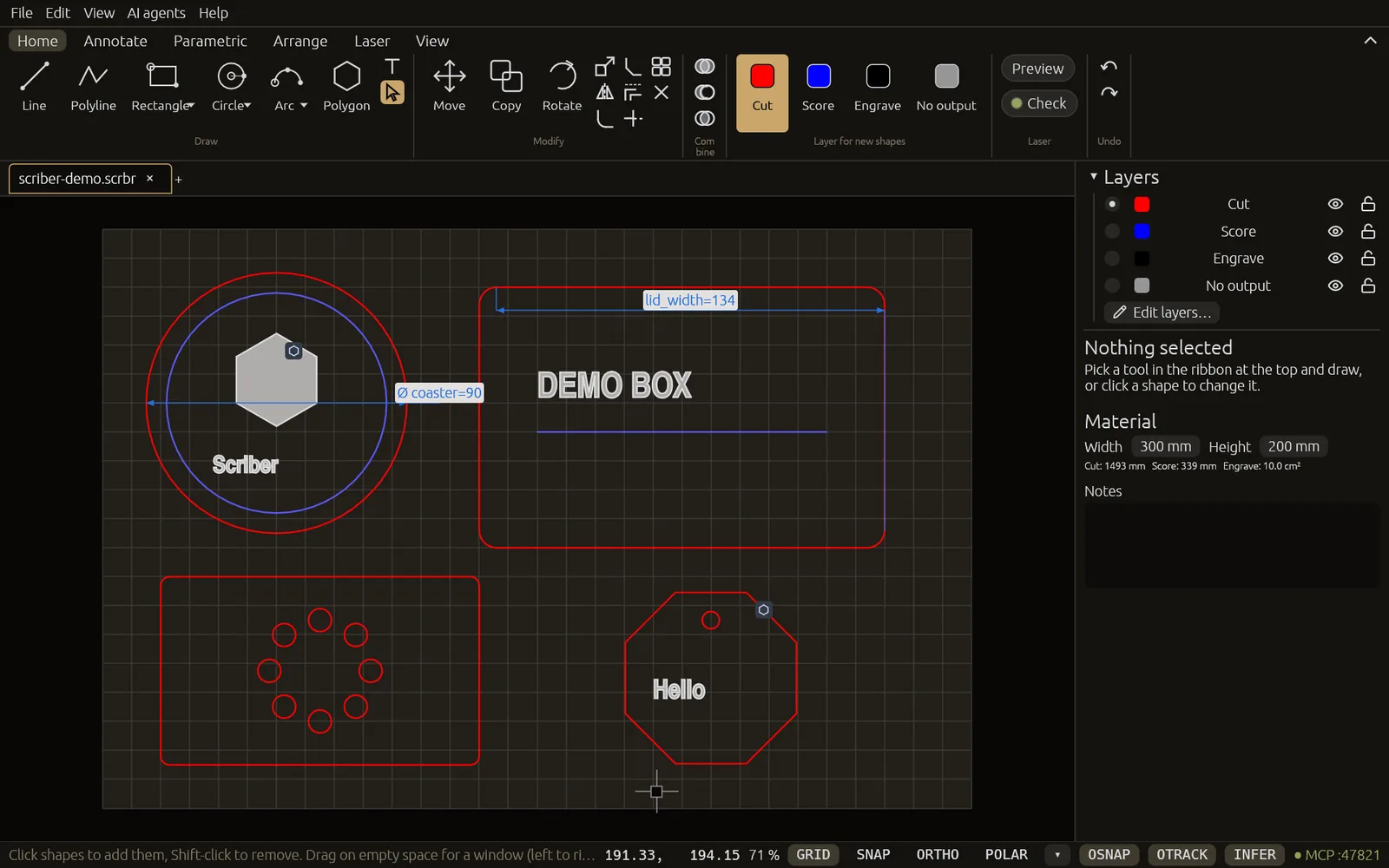
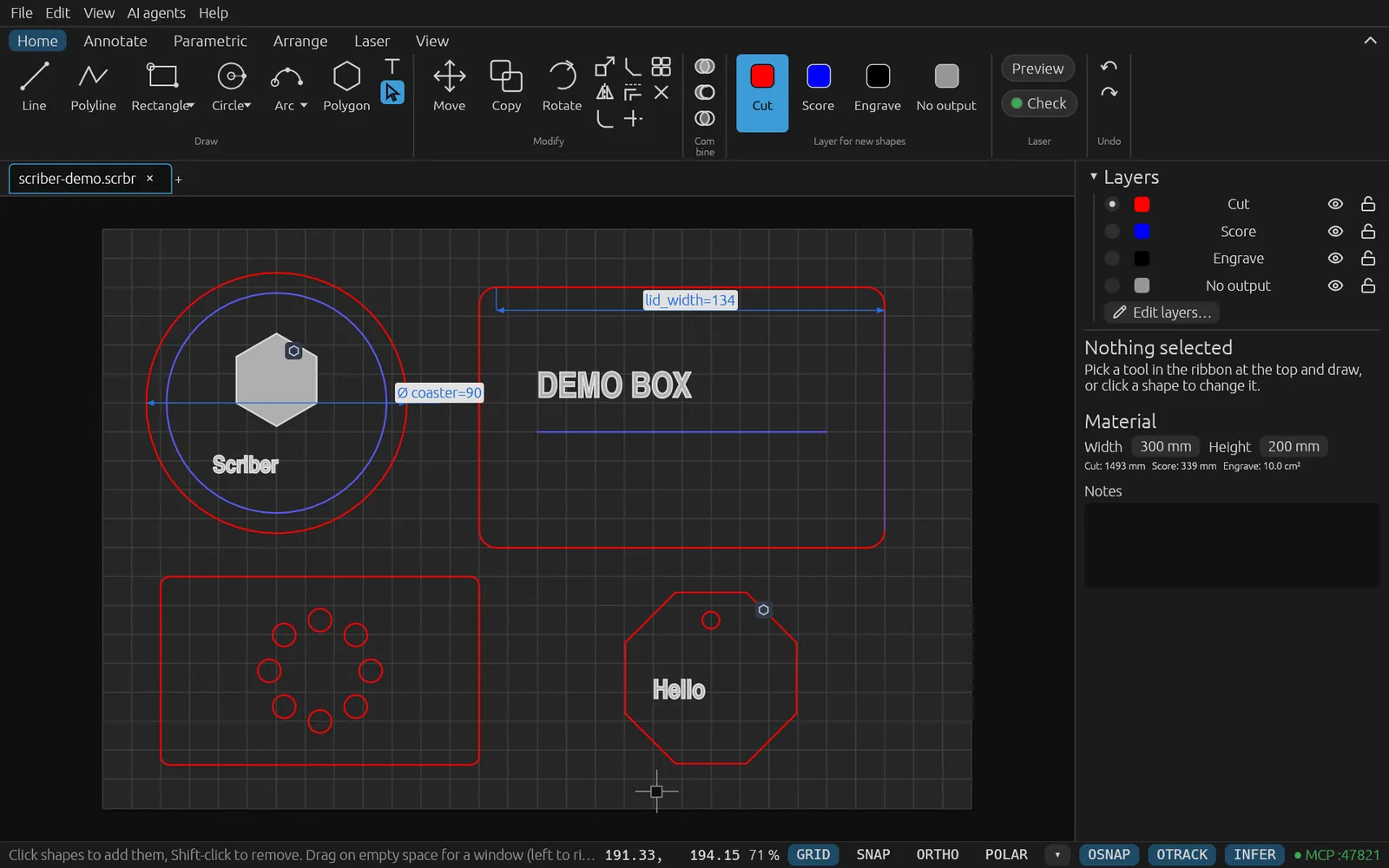
Scriber's colours come from a theme: the panels and buttons, the canvas around the material, the material sheet itself, the grid, and the colours of selection, grips, guide lines and dimensions.
Choosing a theme
Edit → Settings… (Ctrl+,) → Appearance lists every theme with a small swatch (panel, material, accent); click one to use it. Above the list it says which theme is in use and whether Omarchy was found:
| Theme | What it is |
|---|---|
| System | The default. On Omarchy it follows Omarchy's current theme; elsewhere Dark or Light, following your system's dark mode |
| Omarchy: name | Always Omarchy's current theme (greyed out when this is not Omarchy) |
| Dark, Light | Plain dark and light |
| Graphite | Neutral dark grey with a soft blue accent |
| Paper | Warm and light, like cream paper |
| Blueprint | White lines on deep blue |
| High contrast | White on black with a yellow accent |
| your own | Every theme file in your themes folder (see below) |
Scriber remembers the choice. A theme changes the moment you pick it; a theme file you edit, or a new Omarchy theme, shows within two seconds, without a restart.
The laser colours keep their meaning in every theme: red cuts, blue scores, black engraves and grey is no output. On a dark material they are drawn lighter (engraving shows light grey) so they stay readable. A colour you gave a layer yourself is always shown as you chose it.
If a theme cannot be read (a typo in a theme file, a broken Omarchy theme) Scriber says why at the bottom of Settings → Appearance and uses Dark or Light meanwhile.
Gallery
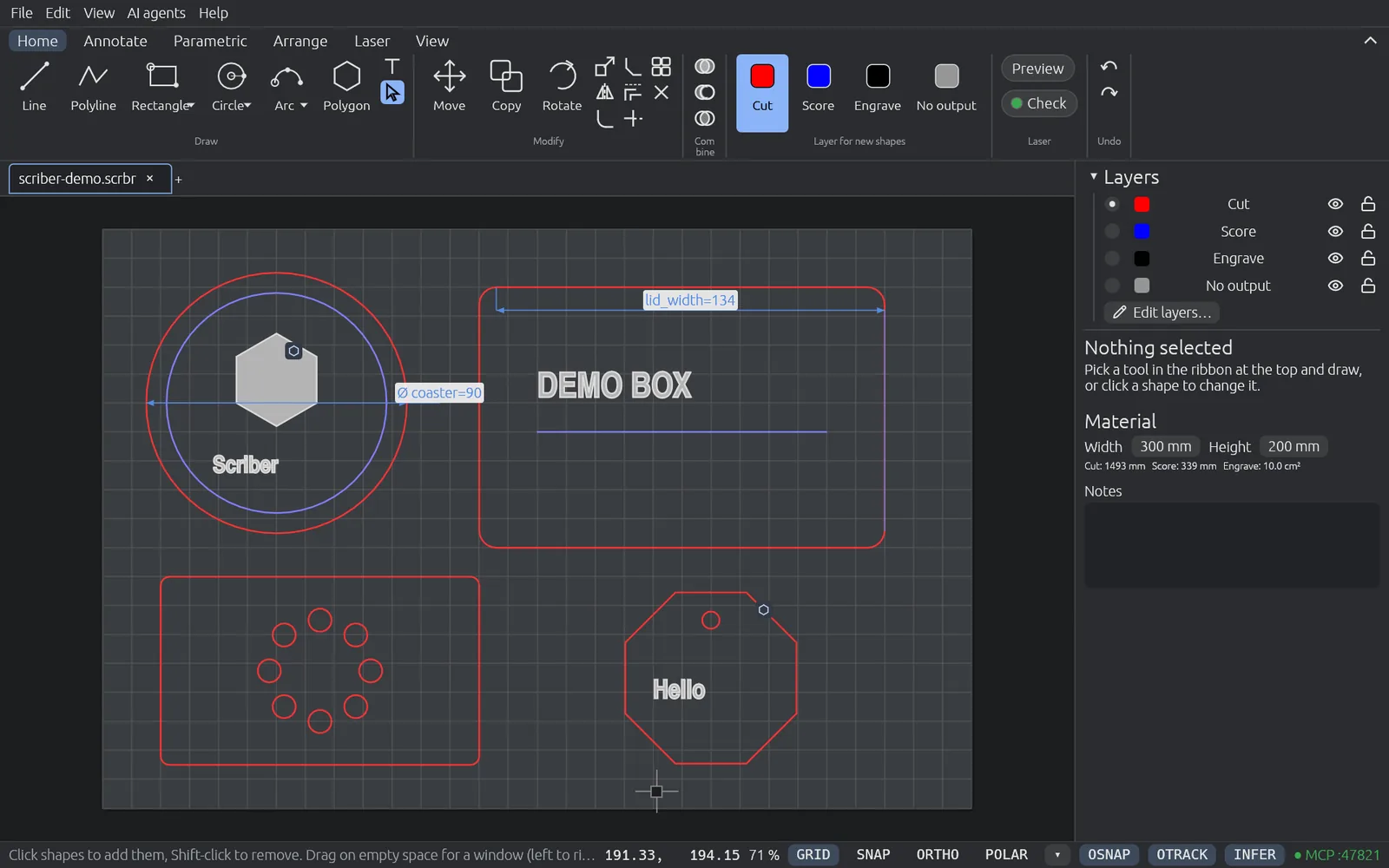
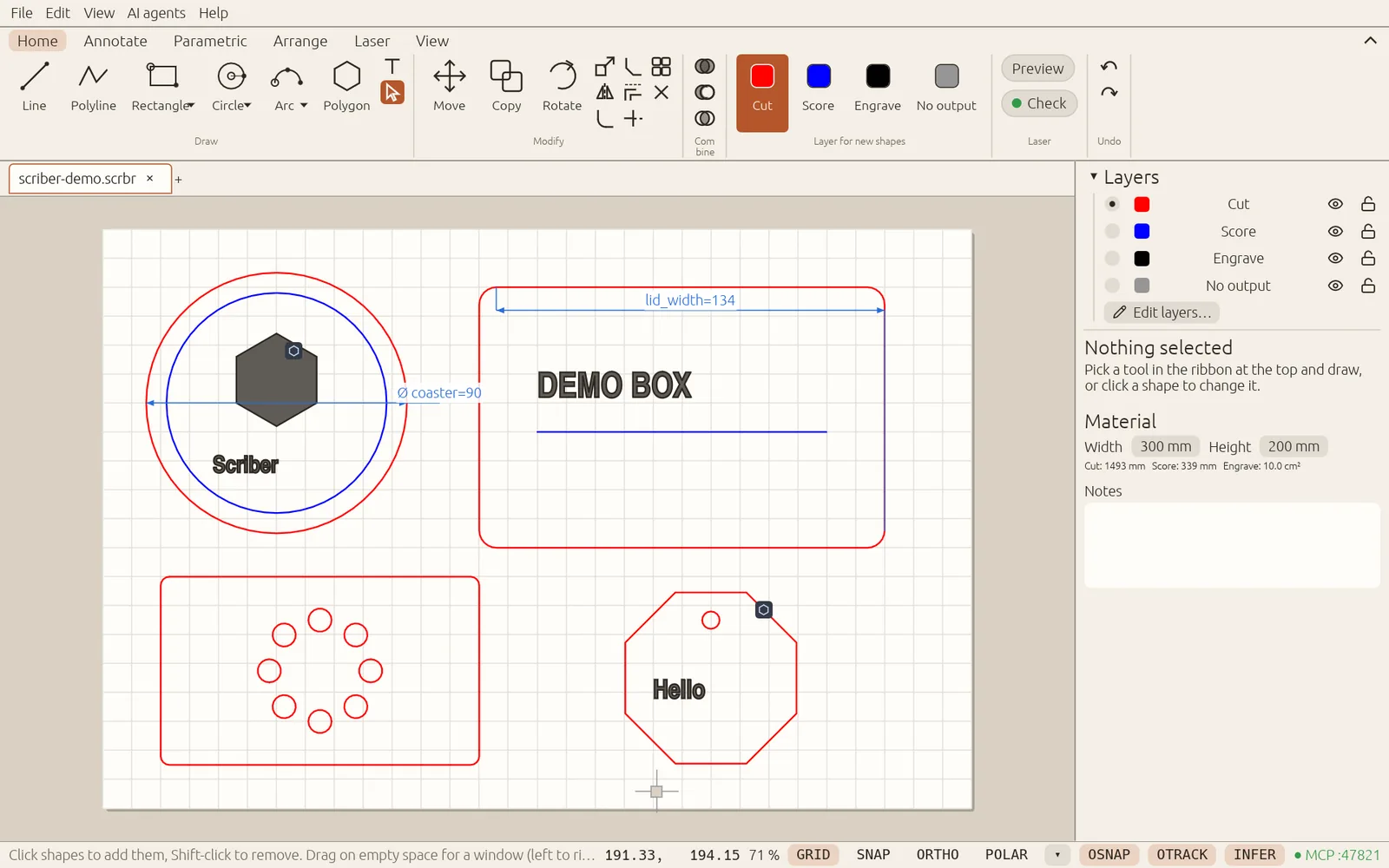
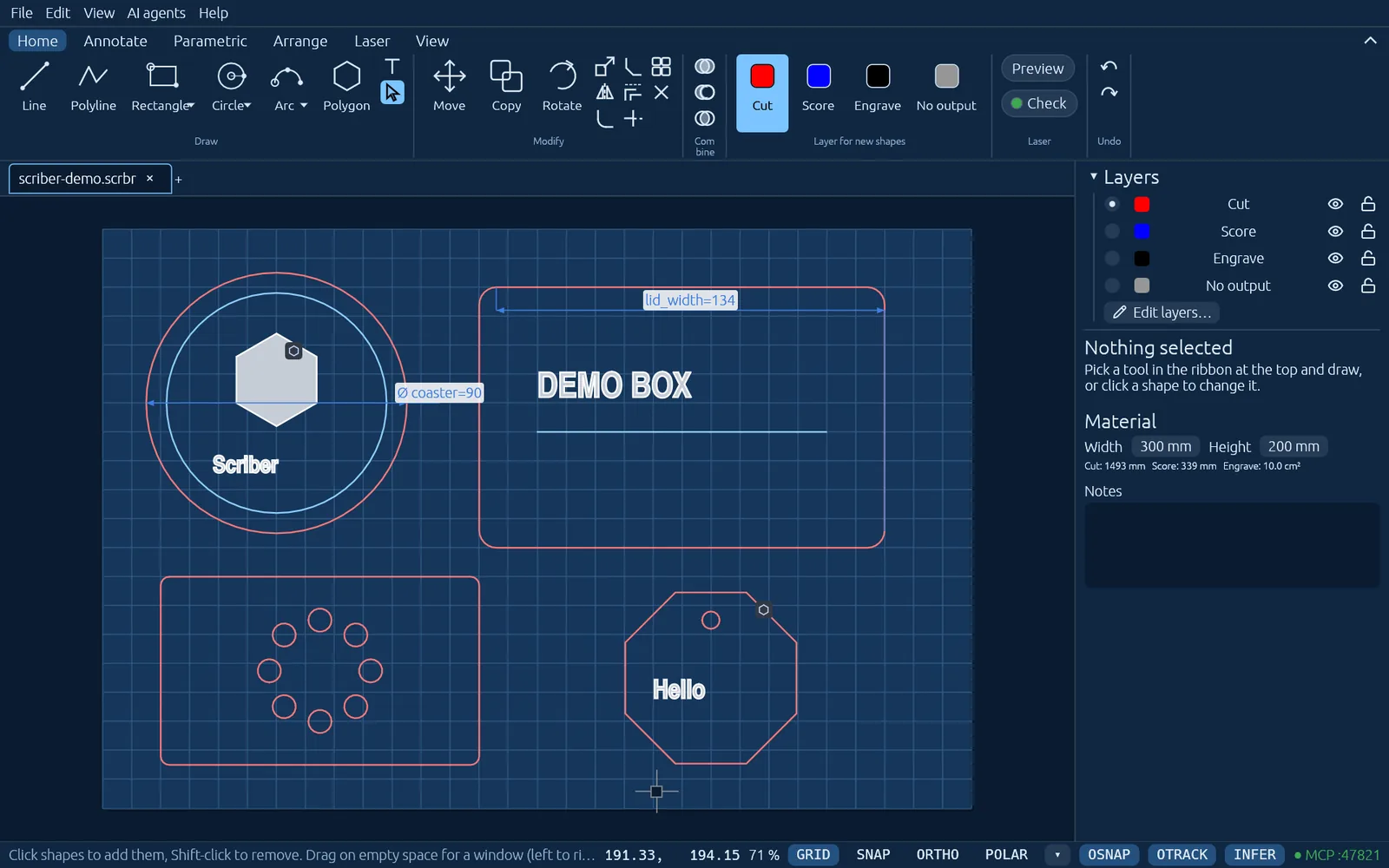
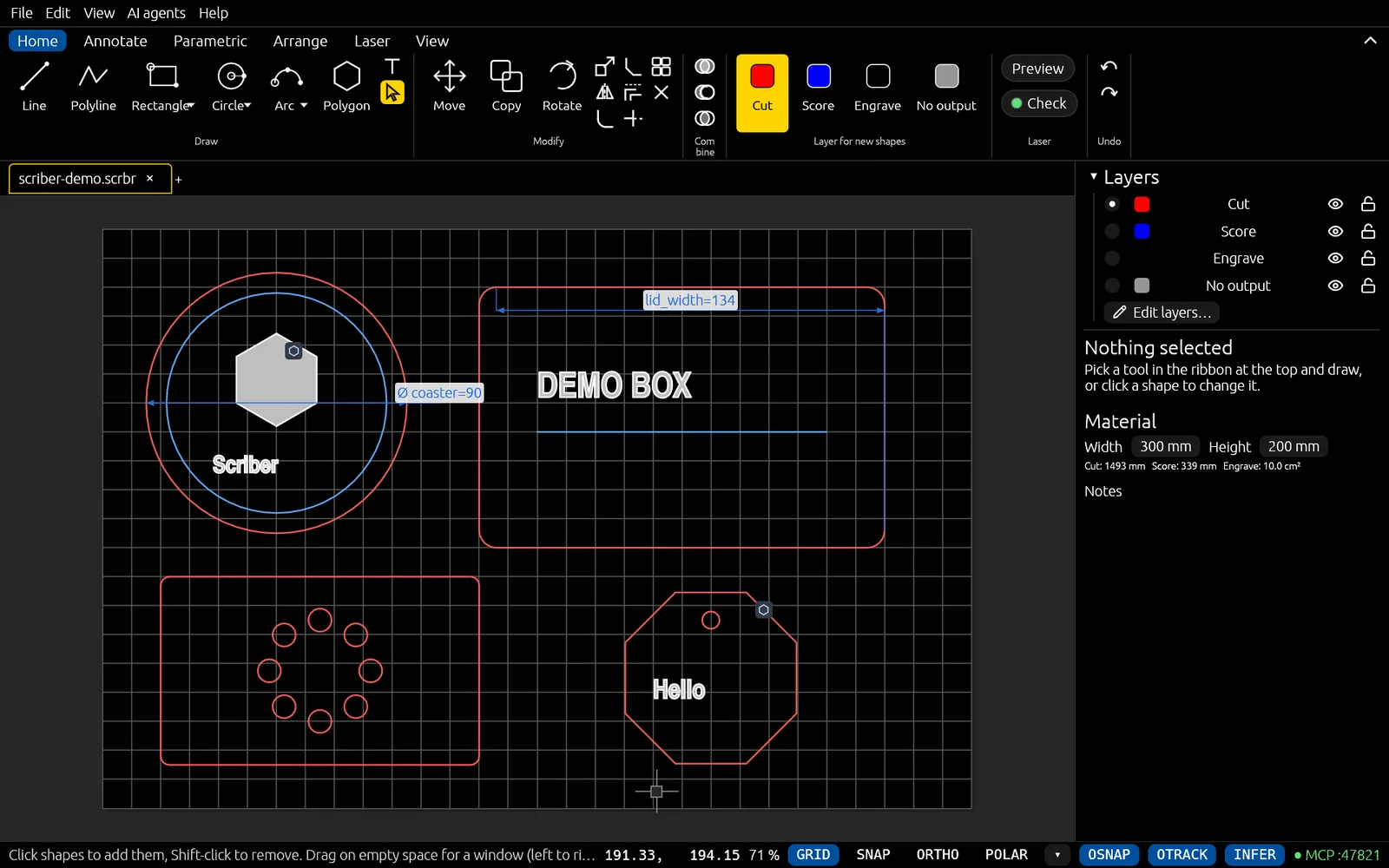
On Omarchy
With System or Omarchy chosen, Scriber reads the current theme in ~/.local/state/omarchy/current/theme/:
scriber.toml, when the theme has one: a Scriber theme file in the format below. A theme author can ship it with the theme to decide exactly how Scriber looks.- Otherwise
colors.toml, the palette every Omarchy theme has. Scriber derives everything else from it.
One Scriber theme for every Omarchy theme
Omarchy renders your own templates for every theme you switch to. Scriber ships one in contrib/omarchy/scriber.toml.tpl:
- Copy it to
~/.config/omarchy/themed/scriber.toml.tpl. - Switch the Omarchy theme once (any theme).
From then on every Omarchy theme gets a scriber.toml, filled in with that theme's colours. Add Scriber's own keys (canvas, material, cut, …, see the table below) to the template to tune all themes at once; , and the other Omarchy placeholders work in any value.
Writing your own theme
A theme is a small TOML file in your themes folder:
| System | Themes folder |
|---|---|
| Linux | ~/.config/scriber/themes/ |
| Windows | %APPDATA%\scriber\themes\ |
| macOS | ~/Library/Application Support/scriber/themes/ |
(SCRIBER_CONFIG_DIR moves the whole config folder; the themes are then in its themes folder.) Settings → Appearance → Open themes folder opens it, and Save current as theme… writes the theme you see now as a new file there, with every key filled in, to start from. Reload reads the files again (Scriber also notices changes by itself).
The file's name, without .toml, is how Scriber remembers it; name is what the menu shows. Colours are "#rrggbb". Only background is required: whatever you leave out is derived from the rest, lighter or darker depending on the mode. An Omarchy colors.toml is a valid theme file as it is, so you can copy one in.
Keys
| Key | What it colours | When left out |
|---|---|---|
name | The name in Settings → Appearance | The file name |
mode | "dark" or "light" | From how dark background is |
background | Panels, menus, windows (required) | |
foreground | Text | Near white or near black |
muted | Weak text (hints, units) | Between foreground and background |
accent | Active ribbon buttons, links, comment pins, the text cursor | Blue |
selection | Selected text and list rows | Background tinted with the accent |
lighter_background | Cards and stripes on panels | Background, slightly lighter (or darker) |
dark_background | Text fields | Background, darker (light themes: whiter) |
darker_background | The canvas, when canvas is not set | |
red, yellow, green | Errors, warnings and "all good" in panels | Red, amber and green |
canvas | Around the material sheet | Background, darker |
material | The material sheet | Dark: lighter_background; light: near white |
grid | The 10 mm grid (the 1 mm grid is fainter) | Material with a little engrave colour |
cut | Lines on cut layers | Red, lightened until readable on the material |
score | Lines on score layers | Blue, lightened until readable |
engrave | Engraved areas and text drawn on the material | Black, or light grey on a dark material |
no_output | Lines that are never lasered | Grey |
selected | The glow around selected shapes | Orange |
hover | What a click would pick | Light blue |
grips | The grips of a selected shape | Blue |
guide | Guide lines | Cyan |
dimension | Locked sizes (dimensional constraints) | Blue |
Text colours are always nudged lighter or darker until they read well on their background (a contrast of at least 4.5:1, the WCAG rule for body text), so a theme cannot make the panels unreadable. Other keys you add, such as Omarchy's cyan or bright_red, are ignored.
A complete example
# ~/.config/scriber/themes/workshop.toml
name = "Workshop"
mode = "dark"

background = "#23262b"
foreground = "#e6e6e6"
muted = "#9aa0a8"
accent = "#f0a03c"
selection = "#4a3b26"
lighter_background = "#2c3036"
dark_background = "#1a1c20"
red = "#ef6b5b"
yellow = "#f0c050"
green = "#7cc47a"

canvas = "#16181b"
material = "#c9a77c"   # plywood
grid = "#b39268"
cut = "#c00000"
score = "#1040c0"
engrave = "#3a2a18"
no_output = "#6e6e6e"
selected = "#ff8c00"
hover = "#2f7fd8"
grips = "#2050e0"
guide = "#008a9e"
dimension = "#1f5fc0"
When a file has a mistake, Settings → Appearance shows the file with the reason (for example workshop: background: "#12345" is not a colour like "#1e1e2e") and Scriber uses Dark or Light until it is fixed.