Editing
Most editing tools work on the selection: select first, then start the tool. If nothing is selected, the tool asks you to pick shapes and press Done selecting. Each tool is one undo step.
Move, copy and turn
| Tool | Key | How |
|---|---|---|
| Move | M | Pick a base point, then where it goes |
| Copy | K | Like Move, but leaves the original; keeps placing copies until Done |
| Rotate | Q | Pick the centre, then the angle (type it or click) |
| Scale | S | Pick the base point, then the factor |
| Mirror | N | Pick two points on the mirror line, then Keep the original or Delete the original |
| Delete | Del | Removes the selection |
Ctrl+D duplicates the selection; the arrow keys nudge it by 1 mm (10 mm with Shift).
Corners and outlines
| Tool | Key | How |
|---|---|---|
| Round corner (fillet) | F | Set the radius on the card, then click corners. All corners of the selection does them at once |
| Cut corner (chamfer) | H | Same, with a straight cut of the given size |
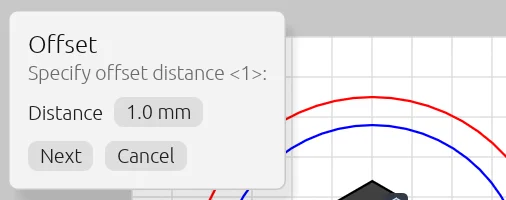
| Offset | O | Set the distance, click a shape, then the side. Also useful as kerf compensation |
| Trim | X | Click the parts of lines that stick out past other shapes |
| Copies in a pattern (array) | Y | Rectangular (rows and columns with spacing) or Polar (a number of copies around a centre) |
The Offset card, where you set the distance:
Combining shapes
On Home → Combine. Select two or more closed shapes:
- Merge: one outline around all of them (union).
- Cut out: the first shape minus the others (difference). This is how you make holes or slots in one go.
- Keep overlap: only the area they share (intersection).
The result keeps the first shape's name and layer. Combine (Ctrl+G) instead keeps all outlines as one compound shape: the inner outlines become holes that stay empty when engraved. Break apart (Ctrl+Shift+G) splits it again.
Reshaping (Arrange tab)
Stretch (W), Join (J), Explode (E), Break (B), Extend, Lengthen and Align work as in AutoCAD:
- Stretch: drag a crossing window over the points to move, then a base point and a target.
- Join connects lines and arcs that touch into one polyline; Explode splits a shape into its separate segments.
- Break cuts a shape at a point or removes the part between two points.
- Extend and Lengthen make lines longer, to another shape or by a given amount.
- Align moves and turns shapes so their points line up with others.
- Copy laser settings (match properties) copies the layer and font from one shape to others.
- Group / Ungroup keeps shapes together for selecting.
- Select similar and Quick select find shapes with the same operation, kind or size.
- Show only selection hides everything else for a moment; Show all brings it back.
Grips
Selected shapes show grips:
- Blue grips on the shape's own points. Drag one to move that point. Rest the pointer on a grip for a small menu: stretch, add or remove a vertex, turn a segment into an arc or back into a line. While dragging you can type a distance.
- Box grips on the selection box:
- a corner resizes; Shift keeps the proportions;
- an edge stretches in one direction;
- the rotate grip above the box turns the selection; Shift snaps to 15°, POLAR to its angles;
- hold Alt to resize around the centre instead of the opposite side.
Each shape remembers its rotation (shown and editable in the properties panel), so the box of a turned shape turns with it and resizing follows the shape's own sides.