Preview and check
Before you send a job to the laser, look at what it will actually do. 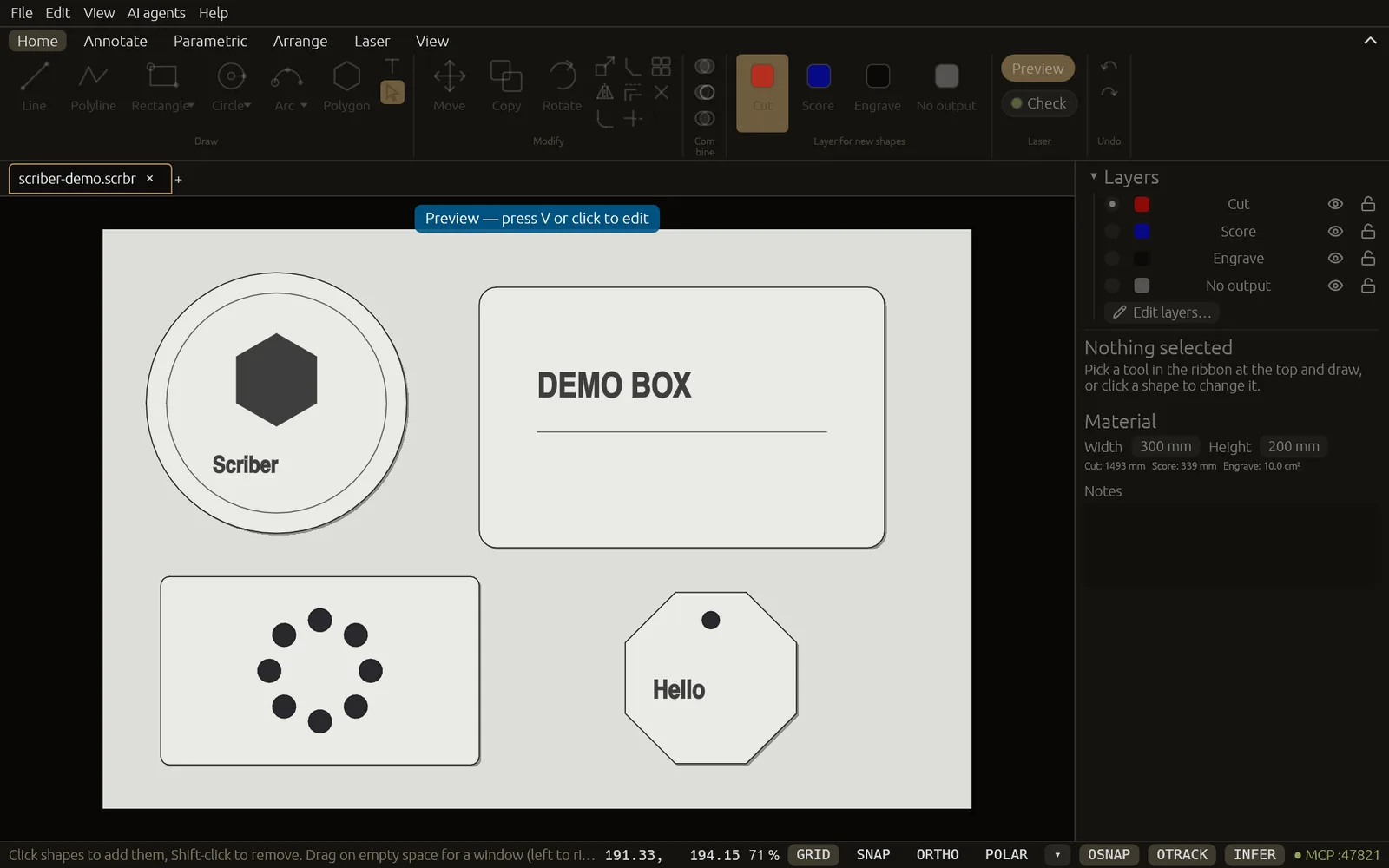
Preview (V)
Preview (Home, Laser or View tab, or V) shows only what the laser makes, on the material's colour:
- engraved areas burned in, with holes left open;
- scored lines as thin marks;
- how dark an engraved area or scored line looks follows its laser settings (the layer's own, else the material's): more power, more passes, slower speed and more lines per cm burn darker, so two engrave layers at 40 % and 60 % look different. Without settings they use one burn colour. A material setting can fix how dark it looks with Preview (see Machines and materials); a layer with its own numbers ignores it;
- cut parts as separate, shadowed pieces with their holes;
- no-output shapes and guide lines hidden; open lines on an engrave layer drawn as scores.
You cannot edit while the preview is on. Press V again to go back. The material's colour and burn colour come from the material library (see Machines and materials).
Check
Check lists things that could go wrong on the laser. Click a warning to select those shapes and zoom to them. The list is a window, so you can keep editing while it is open.
| Warning | Why it matters |
|---|---|
| Shapes set to Cut are not closed | Nothing is cut free |
| Lines drawn on top of each other | The laser goes over the same line twice |
| Outside the machine's work area | The laser cannot reach there |
| Outside the material | It would miss the sheet |
| Details smaller than the beam | They burn away or blur |
| Very small text | Hard to read once lasered |
| No setting for an operation | The material has no power/speed for that layer's operation on this machine and laser |
| Image mode the machine lacks | A layer's image mode is not one of the machine's (after switching machines); its images get the machine's default |
"Nothing found" means the drawing looks ready. Scriber does not plan the job or estimate its time; your laser software does that.