Constraints and dimensions
Constraints keep a drawing the way you meant it, as in AutoCAD's parametric drawing. A locked size (dimensional constraint) keeps a length, radius or angle at a value; a geometric constraint keeps lines parallel, ends joined, circles concentric and so on. After every change, by you, by a grip or by an AI agent, Scriber moves the geometry as little as possible so all constraints still hold. A change that cannot hold is refused, and the message names the constraints in the way.
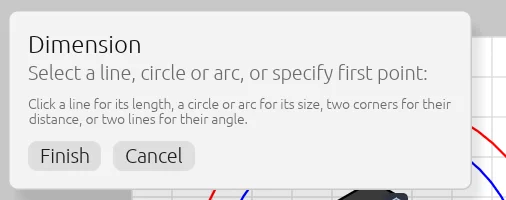
Lock a size: Dimension (D)
Parametric → Dimension (key D) is one tool for every locked size. Click:
| Click on | Locks |
|---|---|
| a line | its length |
| a circle | its diameter |
| an arc | its radius |
| two points | their distance |
| two lines | the angle between them |
The dimension follows the pointer until you click to place it. Type a number (or a formula) and press Enter to set the value; the shape changes to match. The tool repeats until Esc. More ▾ has the single kinds too (horizontal or vertical distance, length, angle, radius, diameter).
Sizes typed while drawing
A length, width, height, radius or diameter you type into dynamic input while drawing becomes a locked size of the new shape. A typed angle of 0° or 90° becomes horizontal or vertical. Sizes that just followed the mouse are not locked.
Names and formulas
Each locked size is a named parameter: d1, rad1, dia1, ang1, … Its label on the canvas reads name=value.
- Rename it to something meaningful (
d1→width) in the Parameters panel, the label's edit card, the properties panel or on the Dimension card while placing. A name starts with a letter, then letters, digits or_. - Formulas use other parameters:
width / 2,d1 + 2 * thickness. Formulas that use a parameter follow when you rename it. - Parametric → Parameters lists them all, to edit values and names in one place.
- Drag a dimension's label with the select tool to move it out of the way.
Geometric constraints
Parametric → Geometric: Coincident, Collinear, Concentric, Fix, Parallel, Perpendicular, Horizontal, Vertical, Tangent, Smooth, Symmetric, Equal and Regular (a closed shape keeps equal sides and corners; every polygon gets it when drawn).
They work on the selection when it fits (two lines selected + Parallel = parallel; Horizontal makes each selected line horizontal), otherwise they ask you to click. The first thing you pick stays put, the second moves. Right-click → Constraints ▸ → Add constraint ▸ offers the same.
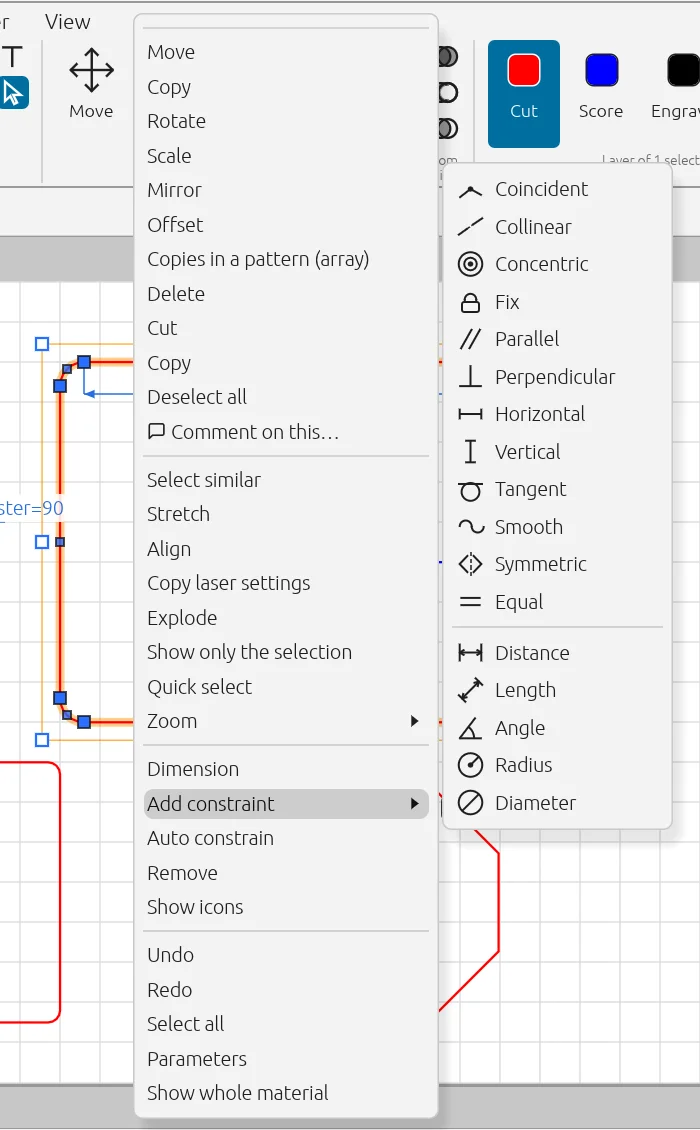
Right-click → Add constraint ▸.
Auto constrain looks at the selection and adds the constraints it can see (horizontal and vertical lines, joined ends, …) within a small tolerance. Useful before changing a size, so the shape keeps its form.
Inferred constraints
With INFER on (status bar, on by default), what you draw on a snap stays attached:
- a point drawn on an end or centre is joined to it; two centres become concentric;
- a point on a line stays on that line; perpendicular and tangent snaps stay perpendicular and tangent;
- the segments of a Line run stay chained; rectangles and ORTHO lines stay level and plumb;
- a grip dropped on an end or centre joins it.
If an inferred constraint would not hold, it is dropped and the drawing stays as drawn.
Seeing and removing constraints
- Show icons (Parametric) shows the constraints next to the selected geometry.
- The properties panel lists the selection's constraints in plain words, with a remove button and value fields.
- Right-click an icon or a dimension label to delete it (or edit its value); Remove deletes the constraints of the selection.