Machines and materials
Scriber knows your laser cutter (its work area and laser modules) and keeps a material library: the power, speed and passes that work for each material. Exports and the pre-flight check use it.
Scriber ships with machine profiles for many xTool machines, but no material settings: you build your own library, import it from xTool Studio or get it from someone else.
Pick the machine and material for a document
Laser tab → Machine & material:
- the machine button: your laser cutter;
- the laser module (for example 10 W blue laser);
- the material button: opens a picker with search and a filter by kind (wood, acrylic, …). The tags C S E next to each material show whether it has settings for cut, score and engrave on this machine and laser (filled = yes, outlined = no).
Use work area sets the material size to the machine's work area.
The choice is saved in the document. The library itself lives on your computer and is shared by all documents.
The Machines & materials window
Laser tab → Machines & materials… opens the library, with two pages.
Machines
A list on the left, the selected machine's form on the right: name, brand, model, work area and its laser modules (type, power in watts, what each can do: cut, score, engrave). You can change the built-in machines; your version wins over the built-in one.
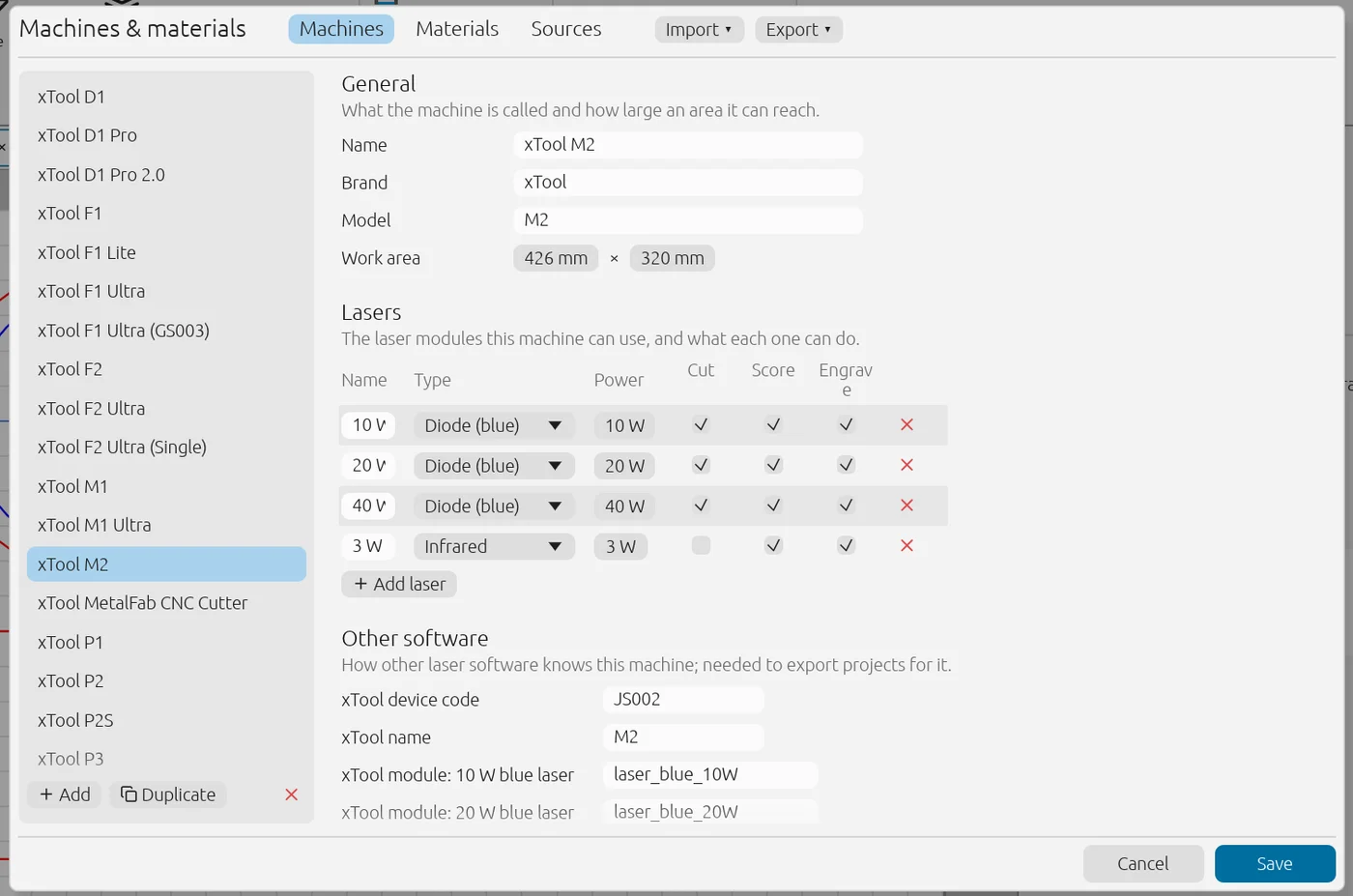
The Machines page.
Materials
Per material: name, kind (paper & card, wood, plywood & MDF, acrylic, leather, fabric & felt, metal, stone & tile, glass, other; used to sort and filter), thickness, colour (the sheet's colour in the laser preview), burn colour (the colour a full burn leaves in the preview, for example dark brown on kraft or silver on black metal card; default a darker shade of the sheet), notes and where the numbers came from.
Below that, the laser settings for one machine and laser at a time:
- pick the machine and laser; Also set up for shows the other machines that have settings;
- per operation (Cut, Score, Engrave): power %, speed mm/s, passes, and for engrave the lines per cm and Both ways (engrave in both directions);
- for score and engrave, Preview: how dark the burn looks in the laser preview. Auto works it out from power, speed, passes and lines per cm; click it to set a percentage instead;
- Add profile adds a named setting next to the default one, for example Light, Deep or Photo. Layers can then pick a profile (see Layers);
- Copy from… copies all profiles from another machine or laser as a starting point.
Press Save to keep your changes. Every delete asks first.
Deleting
Delete removes a machine, a material or a single profile from your library. Machines and materials from a library source are read-only: turn the source off to hide them. A deleted built-in machine stays deleted; an AI agent can bring it back with restore_machine.
An AI agent connected to Scriber can delete too (delete_material, delete_material_setting, delete_machine). It is told to ask you first, since deleting cannot be undone. It does not delete a machine that materials still have settings for unless you agree; those settings are kept and work again if the machine comes back.
Import and Export
- Import ▾ → From xTool Studio… and Laser settings from an xTool project (.xs)…: see Importing from xTool Studio.
- Import ▾ → Scriber library file… and Export ▾: see Share a library.
Where the library is stored
Your machines and materials are kept in library.json in Scriber's config folder (~/.config/scriber/ on Linux, %APPDATA%\scriber\ on Windows). Set the environment variable SCRIBER_LIBRARY to use another file. It only holds what you added or changed; unchanged built-in machines always come fresh with the app.
To write materials by hand, see Make your own material library.